
Valorant is hard. It is even harder when your controller fights against you. If you are missing easy shots or your crosshair feels like it is sliding on ice, your settings are likely the problem.
Most players jump in with default settings. But as noted in the official Riot Games Console launch notes, precision is key, and the defaults are often too slow for reaction shots or too fast for accuracy.
This guide breaks down exactly how Focus Mode Sensitivity works and which Aim Curve you need to stop missing and start climbing ranks.
Quick Start: Best Valorant Console Sensitivity & Aim Curve Settings
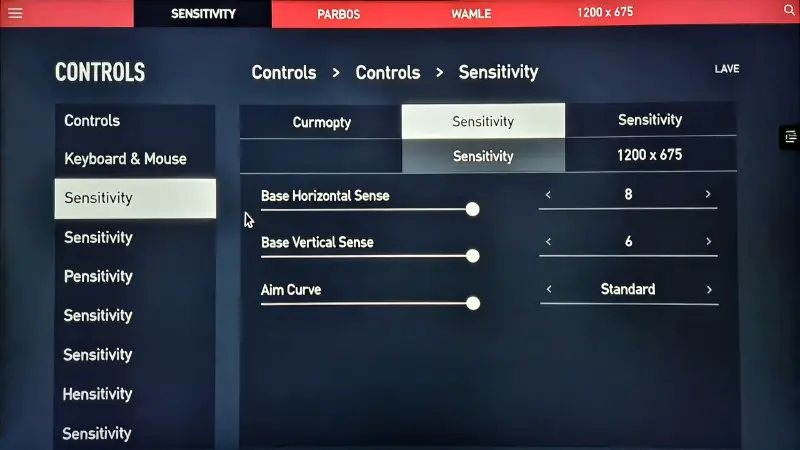
If you just want the best settings to start with, use this "Radiant Baseline." These are the most common settings used by high-ranked console players. Copy these, then read on to tweak them.
| Setting | Value | Why? |
|---|---|---|
| Aim Curve | Standard | Best balance of speed and control. |
| Base Horizontal | 8 - 9 | Fast enough to turn 180 degrees. |
| Base Vertical | 6 - 7 | Keeps your crosshair at head height. |
| Focus Mode | 8 (or 0.8) | Slows down aim for precise tracking. |
| ADS Sensitivity | 7 | Slower than Focus Mode for holding angles. |
| Deadzone (Inner) | 0.05 - 0.07 | Prevents drift but responds instantly. |
Best Aim Curve Guide for Your Playstyle
The Aim Curve is the most important setting nobody explains. It controls how the game translates your thumbstick movement into crosshair movement.
Think of it like the gas pedal in a car.
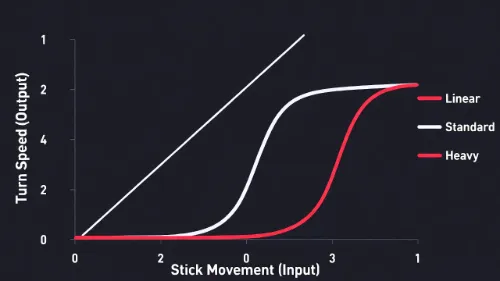
1. Standard Curve (The All-Rounder)
This is what 80% of players should use. It starts somewhat slow for small adjustments but speeds up as you push the stick to the edge. It feels natural because it matches how most other console shooters work.
2. Heavy Curve (The Precision King)
If you find yourself "overshooting" (aiming past the enemy's head), switch to Heavy. It forces the crosshair to move slower when you first touch the stick. It feels "sticky" and heavy. This is great for holding angles but makes turning around 180 degrees feel sluggish.
3. Light & Linear Curves (The Speed Demons)
Only use these if you have perfect thumb control. Linear means raw input: you push 10%, it moves 10%. There is no help from the game. This is extremely fast and twitchy. Most players will struggle to hit long-range shots with this.
Valorant Console Focus Mode Sensitivity Explained
The biggest difference between PC and Console Valorant is Focus Mode. On PC, you usually hip-fire (shoot without zooming). On Console, hip-fire feels too loose. Focus Mode (usually the Left Trigger/L2) creates a "Soft ADS."
What Focus Mode Does:
- It zooms in slightly.
- It tightens your crosshair spread.
- Crucially: It applies a different sensitivity (Focus Mode Sensitivity).
- It activates Rotational Aim Assist.
Focus Mode Sensitivity vs. ADS Sensitivity
Many players get these mixed up. Here is the simple rule:
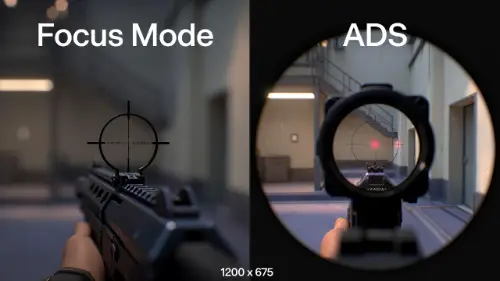
- Focus Mode is for fighting. Use this when you are strafing, peeking corners, or fighting someone within 30 meters. Your Focus Mode Sensitivity should be slightly lower than your base sensitivity so you can track moving targets.
- ADS (Aim Down Sights) is for holding long angles with a Vandal or Operator. This zooms in fully. Your ADS Sensitivity should be very low because you are usually standing still and waiting for someone to walk into your crosshair.
Troubleshooting Your Aim Curve and Sensitivity
If the "Radiant Baseline" settings above don't feel right, use this checklist to fix your specific problem.
Problem: You track behind the enemy.
Fix: Your Sensitivity is too low. Bump it up by 1.
Problem: You flick past the enemy.
Fix: Your Sensitivity is too high, or your curve is too fast. Try the Heavy Aim Curve.
Problem: Aim moves on its own.
Fix: You have "Stick Drift." Increase your Inner Deadzone to 0.10.
Drills to Test Focus Mode Sensitivity
Don't test settings in a Ranked match. Go to The Range.
- The 180 Test: Stand in the middle of the room. Try to turn 180 degrees to look behind you in one smooth motion. If it takes too long, increase your Base Horizontal Sense.
- The Strafe Test: Spawn a bot. Strafe left and right while keeping your crosshair locked on the bot's head using Focus Mode. If your crosshair falls off the head, adjust your Focus Mode Sensitivity.
Frequently Asked Questions
What is the best Aim Curve for Valorant Console?
For most players, the Standard Aim Curve is the best choice. It offers a balance of precision for small movements and speed for turning around. If you struggle with overshooting targets, try the Heavy curve.
Should I use Focus Mode or ADS in Valorant?
You should use Focus Mode for most gunfights (close to mid-range). It allows you to move faster and keeps aim assist strong. Only use full ADS for very long-range shots or when using a sniper.
How do I stop my aim from feeling floaty on Xbox or PS5?
"Floaty" aim usually means your Deadzone is too low or your Response Curve is too linear. Try increasing your Inner Deadzone to 0.07 and switching your Aim Curve to Standard or Heavy.