
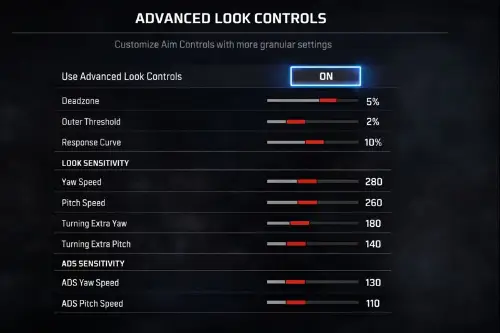
Most players stick to the default "4-3 Classic" sensitivity. It works, but it limits you. If you are reading this, you are ready to take the training wheels off. You want the raw, instant reaction time that only Advanced Look Controls (ALC) can give you.
This Apex Legends ALC settings guide for zero deadzone is not just a list of random numbers. We explain why "Zero Deadzone" is the key to winning one-on-one fights and exactly how to handle the stick drift that comes with it.
1. Why Use an Apex Legends ALC Settings Guide for Zero Deadzone Configurations?
You might ask, "Why would I want my screen to drift on its own?"
Here is the secret. Aim Assist only activates when your camera is moving.
On standard settings, if your thumb is still, Aim Assist is off. But with a Zero Deadzone, your camera is always moving slightly because of stick drift. This means your Rotational Aim Assist is constantly active. It is ready to pull towards an enemy the second they cross your screen.
Also, standard settings have a small delay. You move your stick, the game processes the "deadzone" gap, and then the character turns. With Apex Legends ALC settings guide for zero deadzone values, that gap is gone. You move the stick one millimeter, and the game reacts instantly.
Pro Tip: Check out our Best Controller for Apex Legends guide to see hardware that supports zero deadzone better.
2. The Best Apex Legends ALC Settings Guide for Zero Deadzone Values
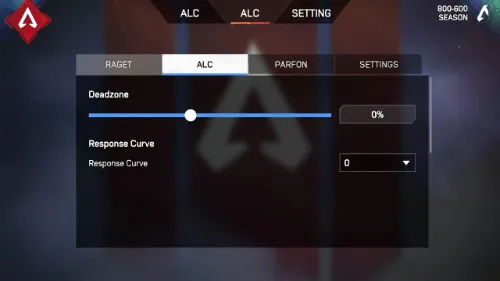
Here are the exact numbers you should start with. These mimic the popular Genburten settings (a pro player known for this style). Input these into your ALC menu.
| Setting Category | Value | Why This Works |
|---|---|---|
| Deadzone | 0% | Removes all input delay. |
| Outer Threshold | 1% - 2% | Lets you hit max turn speed faster. |
| Response Curve | 0 (Linear) | Raw input. What you do is what you get. |
| Yaw Speed (Hipfire) | 350 - 500 | Fast turning for movement. |
| Pitch Speed (Hipfire) | 350 - 500 | Matches your turning speed. |
| Turning Extra Yaw | 0 | Keeps turns consistent. No unexpected acceleration. |
| ADS Yaw | 130 | Slow enough to track, fast enough to react. |
| ADS Pitch | 85 | Helps control vertical recoil. |
Important Warning:
If you set your Response Curve to 0, your aim will feel very loose at first. Give it two hours in the Firing Range. Your brain needs time to adjust to the lack of delay.
3. Managing Drift in Your Apex Legends ALC Settings Guide for Zero Deadzone Setup
This is where most guides fail. They tell you to set Deadzone to 0, and then you get frustrated because your view spins in circles.
Every controller is different. Some have tight sticks; others have loose ones.
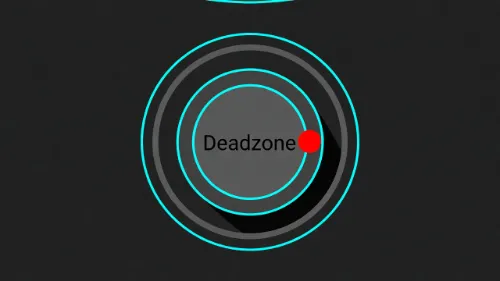
If 0% Deadzone is unplayable for you, follow this stick drift fix:
- Go to the Firing Range.
- Set Deadzone to 0%.
- Look at a stationary dummy.
- If your crosshair moves off the dummy in less than 2 seconds, raise the Deadzone to 1%.
- Repeat until the drift is there, but very slow.
For many players, 2% or 3% Deadzone is the sweet spot. It still feels like zero, but it stops the crazy spinning.
4. Per-Optic Adjustments for the Apex Legends ALC Settings Guide for Zero Deadzone
When you run a Linear response curve (which pairs best with Zero Deadzone), higher zoom scopes can feel twitchy. It is hard to beam people across the map with a 3x scope if your sensitivity is too raw.
Fix this by adjusting your "Per-Optic" settings:
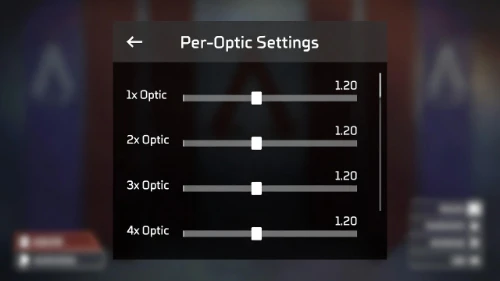
- 1x Optic: 1.0 (Keep default)
- 2x Optic: 1.1
- 3x Optic: 1.2
- 4x Optic: 1.2
Raising these slightly gives you back the stability you lose by removing the deadzone.
Frequently Asked Questions
Q: Is this Apex Legends ALC settings guide for zero deadzone safe for older controllers?
A: It can be tricky. Old controllers often have loose sticks. If your controller is old, you might need to raise the deadzone to 5% or just buy a new controller with "Hall Effect" sticks, which do not drift as much.
Q: Does Zero Deadzone improve Aim Assist?
A: Yes. Because your camera is constantly registering micro-movements (drift), Rotational Aim Assist engages more often. It makes the aim feel "stickier" in close-range fights.
Q: What if I can't control the recoil?
A: If the recoil is too hard to control with these settings, increase your Response Curve slightly. Moving it from 0 to 3 or 5 will make the aim feel tighter and less slippery without losing the speed benefits.