
You know the feeling. You are driving at 200 mph down the highway. You barely touch the thumbstick. Suddenly, your car snaps to the left and spins out. Or maybe you are trying to drift, but the car feels like a heavy boat that refuses to turn.
This usually isn't a problem with your car build. It is a problem with your Advanced Controls.
Most players ignore these settings because they look complicated. But fixing your Forza Horizon 5 steering linearity and inside deadzone is the fastest way to become a better driver.
This guide breaks down exactly what these numbers mean. More importantly, we will show you what numbers you should use to fix your driving.
What Are Forza Horizon 5 Steering Linearity & Inside Deadzone?
Before we change any numbers, let's look at what these two settings actually do to your controller.
Explaining the Forza Horizon 5 Inside Deadzone Setting
Think of the Inside Deadzone as a "safety buffer" or a "sleep mode" for the center of your thumbstick.
- Low Deadzone (0-5): The game reacts to even the tiniest movement of your thumb. If your controller is old and has "stick drift" (where the camera or car moves on its own), a low deadzone will make the problem worse.
- High Deadzone (15+): You have to move the stick quite a bit before the game registers any input. This can make the car feel unresponsive or "laggy" in the center.
The Golden Rule: You want this number as low as possible without getting stick drift.
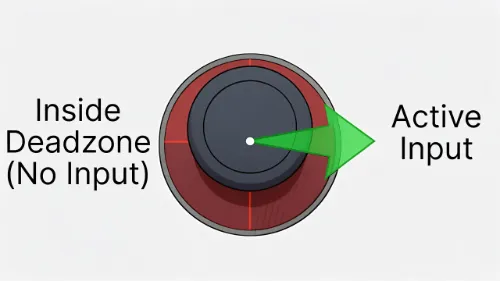
The red zone represents the "Inside Deadzone"—move the stick past this point to turn the car.
Explaining the Forza Horizon 5 Steering Linearity Setting
Steering Linearity controls how "curved" your steering input is. It changes how sensitive the stick is in the center versus the edges.
- Linearity at 50 (Default): This is a 1:1 ratio. If you move the stick 50%, the wheels turn 50%. This is great for steering wheels but often too twitchy for controllers.
- Linearity below 50: This makes the steering less sensitive in the center and more sensitive at the edges. This is what most controller players need to stop the "twitchy" feeling on straights.
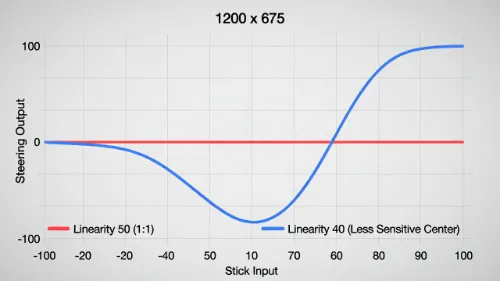
Lower linearity (Blue Line) makes the center of the stick less sensitive, fixing twitchy steering.
Best Forza Horizon 5 Steering Linearity & Inside Deadzone Settings for Controllers
If you want a quick fix, start with these presets. These values are tested for standard Xbox and PlayStation controllers.
| Setting Name | Racing / Grip | Drifting | Why this works? |
|---|---|---|---|
| Steering Axis Deadzone Inside | 5 | 3 | Keeps steering responsive but ignores minor stick drift. |
| Steering Axis Deadzone Outside | 100 | 100 | Uses the full physical range of your joystick. |
| Steering Linearity | 45 | 50 | 45 calms twitchy straights. 50 gives raw input for catching slides. |
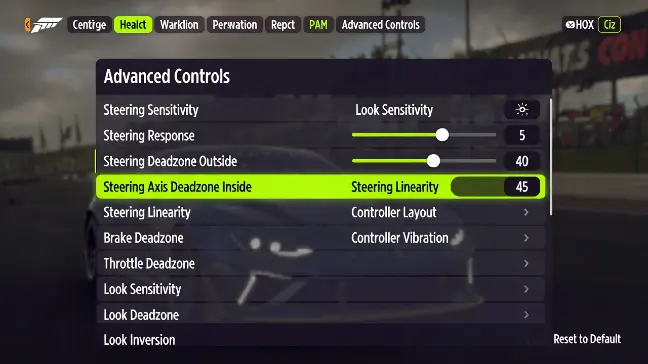
Recommended start points: Linearity 45 and Inside Deadzone 5 for smoother racing.
Why These Forza Horizon 5 Steering Linearity & Inside Deadzone Values Work
For racing, lowering your linearity to 45 helps you make tiny adjustments on straight roads without the car snapping sideways. It gives you a "softer" feel in the center of the stick. This is similar to how professionals tune their setups for maximum grip.
For drifting, you often want a linearity of 50. When you are drifting, you need the front wheels to react instantly to counter-steer. A lower linearity might make your counter-steering feel too slow. This can cause you to spin out.
How to Use Telemetry to Tune Forza Horizon 5 Steering Linearity & Inside Deadzone
Don't just guess your numbers. The game has a hidden tool called Telemetry. It shows you exactly what your controller is doing. Here is how to use it to find your perfect settings.
The "Hands-Off" Test
- Go to Settings: Pause the game. Go to
Settings > Advanced Controls. - Enable Telemetry: Make sure the option to switch telemetry is mapped. (This is usually 'T' on a keyboard or 'Down' on the D-pad).
- Open Telemetry: Drive your car and open the Telemetry overlay. Scroll to the "Controls" or "Steering" tab.
- Check Numbers: Put your controller down on the table. Look at the steering input number.
- If the number is 0.00, your deadzone is fine.
- If the number is flickering (e.g., 0.02, -0.01), you have stick drift. Increase your Inside Deadzone by 1 point at a time. Stop when it stays at 0.00.
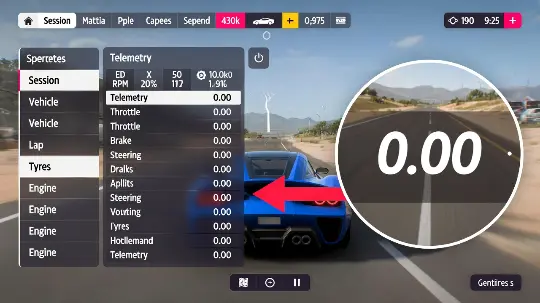
Check the "Steering" value in the Telemetry window. If it flickers above 0.00 without you touching the stick, increase your deadzone.
This is the only accurate way to set your Forza Horizon 5 inside deadzone. Every controller is different. Your friend's number might not work for you.
Troubleshooting Forza Horizon 5 Steering Linearity & Inside Deadzone Issues
Still having trouble? Here are common handling problems and which setting fixes them.
My Car is Twitchy on Straights (Forza Horizon 5 Steering Linearity Issue)
Are you driving straight? Does a slight thumb movement send you crashing into a wall? Your center sensitivity is too high.
- The Fix: Lower your Steering Linearity. Try moving it from 50 down to 45 or even 40. This makes the center of the stick less aggressive.
My Car Turns Too Slow (Forza Horizon 5 Inside Deadzone Issue)
If you move the stick but the car takes a split second to react, your "sleep mode" zone is too big.
- The Fix: Lower your Steering Axis Deadzone Inside. If it is at 10 or 15, drop it to 5. This makes the car react the instant you touch the stick.
Frequently Asked Questions
What is the best steering linearity for Forza Horizon 5 controller?
For most controller players, the best steering linearity is between 40 and 45. This range reduces sensitivity in the center of the stick. It prevents the car from twitching uncontrollably at high speeds. It still allows full turning sharpness at the edges.
Does inside deadzone fix stick drift in Forza Horizon 5?
Yes. Increasing the Inside Deadzone creates a larger neutral area in the center of your thumbstick. This ignores the small, unintentional signals caused by a worn-out controller (stick drift). It keeps your car driving straight when you aren't touching the controls.
Should I change my outside deadzone in Forza Horizon 5?
You should almost always keep your Outside Deadzone at 100. Lowering this number reduces the range of your stick. This means the car will hit "full lock" steering before you push the stick all the way to the edge. This can make the steering feel jerky and unpredictable.