
Your car feels slow. You see pros spinning fast. You see them hitting the ball with power. But when you try it? Your car feels heavy. You might think you need a "Square Deadzone" to fix this.
Here is the truth. You probably don't need a square deadzone. You just need to understand how Rocket League Best Aerial Sensitivity works with your controller shape.
Most players get this wrong. They copy pro settings. But they don't know why those numbers work. Let’s fix your settings so you can finally hit those fast aerials.
The Debate: Cross vs. Square Deadzone Shape in Rocket League
To find the Rocket League Best Aerial Sensitivity, look at your hardware first. Your analog stick moves in a circle. But the game map is a square grid.
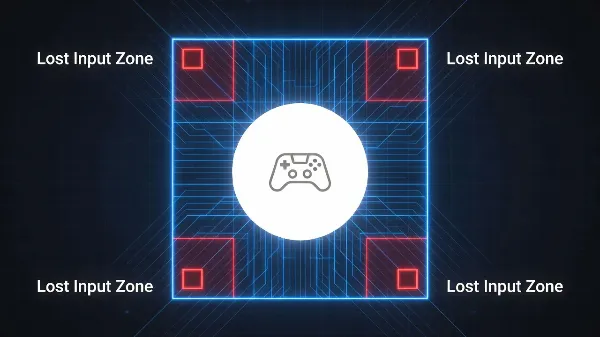
- Cross Deadzone (Default): The game reads your input exactly as your stick moves. It reads a circle. The problem? A circle does not reach the corners of a square. In Rocket League, the corners are where you get maximum diagonal air roll speed.
- Square Deadzone: This forces your circular stick input to fill the square corners. It makes you spin faster diagonally.
Why not just use Square?
Square deadzones can be glitchy. They often cause "double inputs." They can make your flip cancels fail. This is why most pros actually use the default Cross vs Square deadzone shape. They keep the Cross shape but use sensitivity settings to fix the speed issue.
How to Get Square Speed with Rocket League Best Aerial Sensitivity
This is the most important part of this guide. You can get the benefits of a Square Deadzone without the glitches. You just need to change one number.
The Magic Number is 1.41.
Here is the math. If your stick is a circle, it only reaches about 70% of the way into the corner of the square. To reach 100% (the corner), you need to multiply your input.
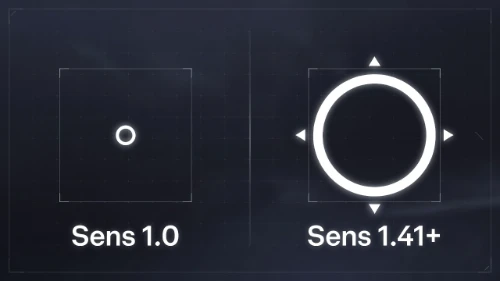
- If you set your Rocket League Best Aerial Sensitivity to 1.0, you are slow in the corners.
- If you set it to 1.3 or higher, the game multiplies your input. This pushes your "circle" reach out further. It covers the corners of the square.
What this really means:
You do not need third-party software. You do not need complex setups. You just need a sensitivity multiplier. Set your Aerial Sensitivity to roughly 1.45 or higher. This effectively handles squaring the circle Rocket League style. It gives you maximum speed.
Top Settings: Rocket League Best Aerial Sensitivity & Deadzone Shape
We analyzed the top 100 pro players using data from Liquipedia. Here is the data on Rocket League controller settings 2026 for competitive play.
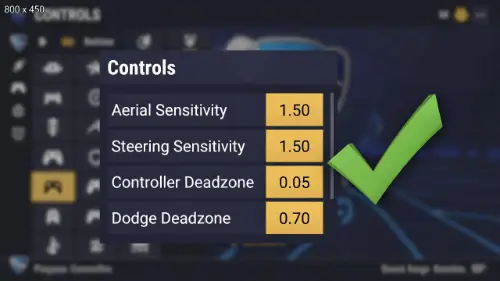
| Setting | Recommended Range | Why It Works |
|---|---|---|
| Aerial Sensitivity | 1.40 – 1.70 | Gives you "Square" speed on a standard controller. |
| Steering Sensitivity | 1.40 – 1.70 | Helps with fast ground dribbles and flicks. |
| Controller Deadzone | 0.05 – 0.07 | Low enough to be snappy. High enough to stop stick drift. |
| Dodge Deadzone | 0.60 – 0.75 | Prevents you from backflipping when you want to fast aerial. |
Note on High Sensitivity: Avoid going over 2.5. It makes you fast, but it makes you inconsistent. The sweet spot for Rocket League Best Aerial Sensitivity is between 1.4 and 1.8.
PC vs. Console: Handling Rocket League Best Aerial Sensitivity
Your platform changes how you should set this up.
For Steam Users
Steam has a built-in tool. You can use the Steam Controller Configuration to change your shape.
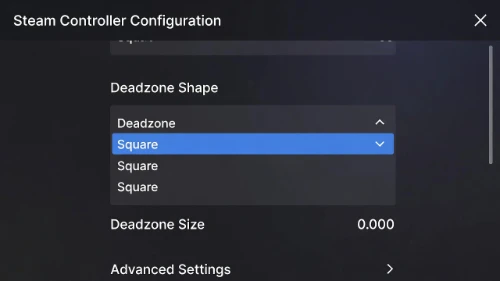
- Right-click Rocket League in Steam.
- Go to Manage > Controller Layout.
- Edit Layout > Joysticks > Deadzones.
- Here you can force a "Square" shape.
Expert Tip: Even if you do this, keep your sensitivity around 1.3 for smooth control.
For Epic Games & Console (PS5/Xbox) Users
You do not have the Steam configuration tool. You are stuck with the default "Cross" shape. Many players ask how to get square deadzone on Epic Games.
You have two choices:
- The Hard Way: Use third-party tools like DS4Windows Rocket League settings to force a shape.
- The Easy Way (Recommended): Use the sensitivity trick explained above.
This makes your sensitivity setting vital. You must increase your Rocket League Best Aerial Sensitivity to at least 1.41. If you leave it at 1.0, you are physically unable to turn as fast as PC players using Square.
Frequently Asked Questions
What is the best deadzone shape for Rocket League?
For most players, the default Cross deadzone is best because it is consistent. However, you should pair it with an Aerial Sensitivity of 1.4 or higher to get the speed benefits of a Square deadzone.
Does higher sensitivity make you faster in Rocket League?
Yes. Increasing your sensitivity acts as a multiplier. This allows your analog stick to maxing out input faster, which is key for mechanics like air dribbles and double touches.
Why does my car feel heavy in the air?
A heavy car usually means your Aerial Sensitivity is too low (below 1.3) or your Controller Deadzone is too high (above 0.10). Try lowering your deadzone to 0.05 and raising your sensitivity to 1.50.
Is Square deadzone cheating?
No, using a Square deadzone is not cheating. It is a preference. Many pros used to use it. Now, most prefer High Sensitivity on a Cross deadzone because it is smoother.