
You are fast, but you keep losing the car on corner exits. You hit the gas in 3rd or 4th gear, and suddenly the back end snaps. You blame your foot or your finger, but the real problem might be your hardware.
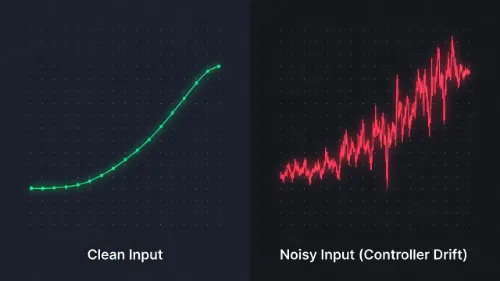
If your controller sends "noise" to the console, F1 24 thinks you are mashing the throttle. But you are actually trying to be gentle. This guide explains how to check your hardware health. It also shows you how to fix your F1 24: Calibrating Trigger Deadzones for Traction Control settings to stop the spinning.
Why F1 24: Calibrating Trigger Deadzones for Traction Control Matters
You are a controller player. You don't have a $500 wheel setup. You just want to come home, race a few laps, and compete without frustration. But right now, the car feels unpredictable. Sometimes it sticks; sometimes it slides. You feel like the game is cheating you.
This happens because standard controllers wear out. The springs inside the triggers get loose. The controller starts sending unsteady signals.
- The Pain Point: You apply 50% throttle, but the game sees a jump from 50% to 55% and back.
- The Result: The car loses grip, and you spin.
- The Fix: You need proper calibration.
Step 1: Test Hardware Before Calibrating
Do not change game settings yet. First, check if your controller is broken. Changing settings on a faulty controller is a waste of time.
Before you start:
Use our free tool to see what your controller is actually doing.
Launch Gamepad TesterWhat to Look For:
- Jitter: Hold the trigger halfway. Does the number on the screen stay steady? If it shakes up and down, your sensor is dirty or worn.
- Ghosting: Take your finger off the trigger. Does it say "0.00"? If it says "0.02" or higher, your brakes might be dragging. This can also stop DRS from opening.
- Max Range: Squeeze fully. Does it hit "1.00" (100%)? If it stops at 0.95, you are losing top speed on straights.
If you see these errors, you need to adjust your Deadzone to filter them out.
Defining Terms for F1 24 Calibration
To get the best grip, you must understand the three bars in the menu.
1. Trigger Deadzone
This creates a "safe zone" at the start of the press.
- How it works: If you set this to 5, the game ignores the first 5% of your finger movement.
- Why use it: This is the main fix for "Ghosting" or accidental inputs.
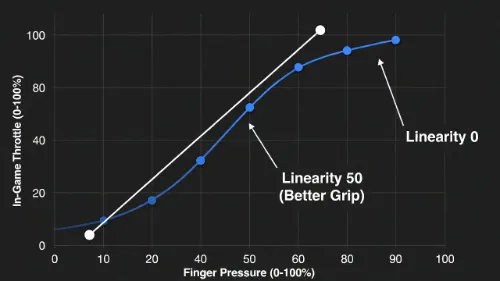
2. Trigger Linearity
This changes how the power is delivered.
- 0 Linearity: 50% finger pressure = 50% engine power.
- 50 Linearity: 50% finger pressure = 30% engine power.
- Why use it: Higher linearity makes the start of the throttle press softer. It gives you more precision at low speeds. This helps traction control.
3. Trigger Saturation
This creates a limit at the end of the press.
- How it works: It forces the game to reach 100% power before you fully squeeze the trigger.
- Why use it: Only use this if your trigger is broken and cannot physically reach 100%.
Best Settings for F1 24: Calibrating Trigger Deadzones
Use these specific numbers based on your hardware condition.
Scenario A: The Brand New Controller
- Trigger Deadzone: 0 (Instant response)
- Trigger Linearity: 30 (Smooth power)
- Trigger Saturation: 0
Scenario B: Old/Drifting Controller
- Trigger Deadzone: 5 to 10 (Hides jitter)
- Trigger Linearity: 50 (Extra safety)
- Trigger Saturation: 0
Scenario C: The "Spin Cycle" (Maximum Help)
Use this if you cannot stop spinning out.
- Trigger Deadzone: 5
- Trigger Linearity: 60
- Trigger Saturation: 0
Note: Do not set Linearity too high (over 70). The car will feel slow at first. Then, it will suddenly give you huge power all at once. This causes you to spin again.
Troubleshooting F1 24 Calibration
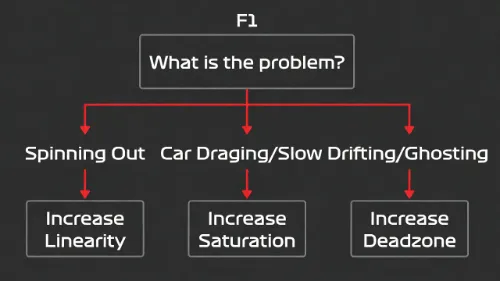
If you still have issues, check the chart below to find the right adjustment. For more advanced hardware fixes, see this guide on Fixing Controller Drift.
| Symptom | The Likely Cause | The Fix |
|---|---|---|
| Car spins instantly on exit | Throttle is too sensitive. | Increase Linearity to 50. |
| DRS won't open | Brake pedal is "ghosting." | Increase Brake Deadzone to 3. |
| Car is slow on straights | Throttle isn't reaching 100%. | Increase Throttle Saturation to 5. |
| Car feels laggy/delayed | Deadzone is too high. | Decrease Deadzone to 0. |
FAQs on F1 24: Calibrating Trigger Deadzones
What is the best deadzone for F1 24?
For most players, a deadzone of 2 to 5 is best. It prevents accidental inputs but keeps the car responsive. If your controller is new, try 0.
Does higher linearity help with traction control?
Yes. Higher linearity (around 40-50) makes the throttle less sensitive at low speeds. This makes it easier to apply power smoothly without spinning the wheels.
How do I know if my trigger is broken?
Use a gamepad tester. If the values jump around when you hold the trigger still, your trigger has "drift" or noise. If it registers input when you aren't touching it, that is "ghosting."