
Assetto Corsa is a true simulator. It does not hold your hand. If you just plug in a controller or wheel and drive, it often feels terrible. The cars spin, the steering snaps, and you might want to quit.
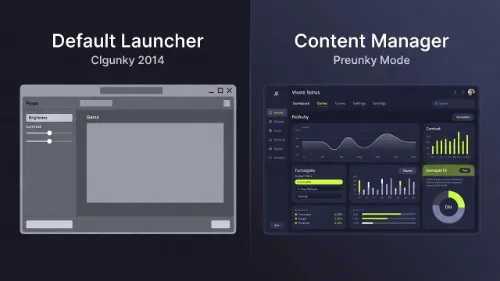
This Assetto Corsa: Wheel vs. Gamepad Configuration Guide explains exactly how to fix your inputs. We will ignore the old "default" launcher. Instead, we focus on the tools modern players actually use: Content Manager and Custom Shaders Patch.
1. Why Your Configuration Matters
Many players think a steering wheel automatically makes them faster. That is not true. A well-configured gamepad can set world records. A poorly configured wheel will make you slower than an AI driver.
The secret is not expensive gear. It is software. We need to fix how the game talks to your hardware.
- For Wheel Users: The game sends "linear" signals. However, entry-level gears (like the Logitech G29 or Thrustmaster T300) are not linear. We need a LUT file to fix this.
- For Gamepad Users: The game thinks you have a steering wheel. We need a script to tell it you are using a thumbstick.
The "Budget Racer" Rule:
If you are using an Xbox controller or a Logitech G29, the default settings are designed for equipment you don't have. Follow the steps below to make your entry-level gear feel like a pro rig.
2. Configuration for Controllers (Gamepad FX)
If you play on a controller, stop tweaking "Gamma" or "Speed Sensitivity" in the main menu. That is the old way. The new way uses a tool called Gamepad FX.
Step 1: Get Content Manager
You cannot get a good controller feeling with the standard blue menus. You need Content Manager (CM). It is a free program that replaces the original game launcher.
Step 2: Install a Script (The Secret Weapon)
Standard Assetto Corsa steering is "dumb." It turns the wheels exactly where you point the stick. Real cars do not do that. Real cars self-align. To fix this, we use a script:
- Open Content Manager.
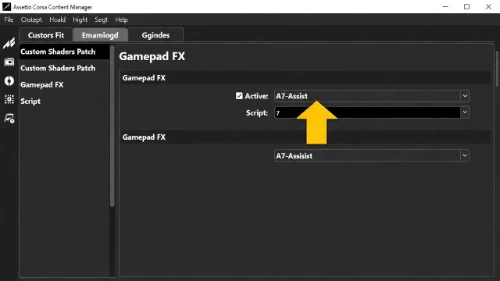
- Go to Settings > Custom Shaders Patch > Gamepad FX.
- Check the box marked "Active."
- Select a script like "A7-Assist" or "Advanced Gamepad Assist."
What Does the Script Do?
It adds "Artificial Force Feedback" to your thumbstick. When the car slides, the script helps you counter-steer. This mimics how a real steering wheel pulls your hands. It stops the "twitchy" feeling where you overcorrect and crash.
The Backup Plan (No Scripts)
If you cannot use scripts (like on a console), use these settings in the main controls menu:
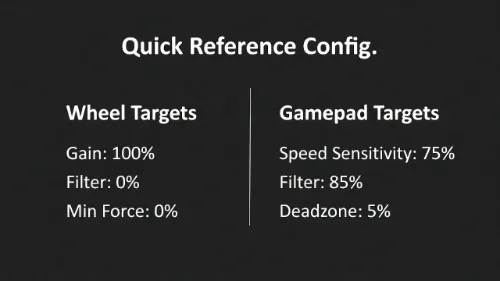
- Speed Sensitivity: 75% (Stops the car from turning too sharp at high speed).
- Filter: 85% (Smooths out jerky thumb movements).
- Deadzone: 5% (Stops drift if your stick is loose).
- Gamma: 2.5 (Makes the stick less sensitive in the center).
3. Configuration for Steering Wheels
If you have a Logitech G29, G920, or Thrustmaster T300, the default Force Feedback (FFB) is often wrong. It "clips" (maxes out) too early. This makes the wheel feel heavy and numb.
Step 1: Generate a LUT File
Your wheel motor is not perfect. A LUT (Look Up Table) is a file that measures your specific wheel motor. It creates a correction curve to fix it.
- Download WheelCheck and LUT Generator.
- Run WheelCheck and select "Linear Force Test." Your wheel will move slowly on its own.
- Load the result into LUT Generator to get your
.lutfile. - In Content Manager, go to Settings > Assetto Corsa > Controls > Force Feedback.
- Enable "Use LUT" and load your file.
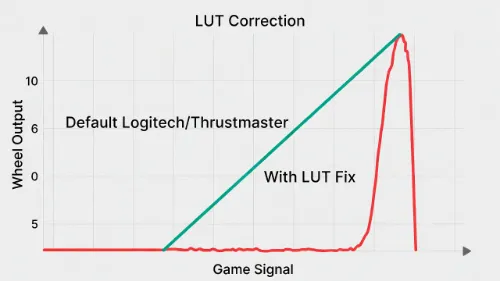
Result: The "dead zone" in the middle of the wheel disappears. You will feel small bumps and tire slips you missed before.
Step 2: Use FFBClip
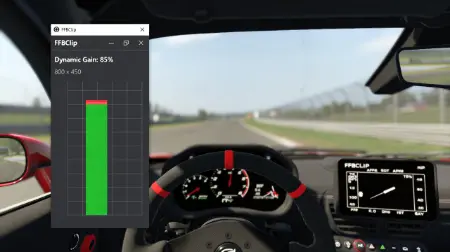
A common mistake in any Assetto Corsa guide is setting Gain to 100%. Do not do this. If Gain is too high, the game sends a signal stronger than your wheel can handle. This is called "clipping." The detail disappears, and the wheel feels like a heavy brick.
- Download the FFBClip app.
- Open it in-game (side menu).
- Click "Auto."
Best Settings for Entry-Level Wheels
| Setting | Value | Why? |
|---|---|---|
| Gain | 100% | Let the LUT file or FFBClip manage the actual output. |
| Filter | 0% | You want raw data. Don't smooth it out. |
| Minimum Force | 0% | The LUT file fixes the center deadzone, so you don't need this. |
| Kerb Effect | 10% | High values just make the wheel rattle loudly. |
| Road Effect | 10% | Keeps the wheel stable on straights. |
| Slip Effect | 15% | Helps you feel when tires lose traction. |
4. Wheel vs. Gamepad: The Verdict
Is a wheel strictly better? Not always.
Gamepad Pros
- Cheaper: You likely already own one.
- Reactions: You can go from full-lock left to full-lock right instantly.
- Drifting: With the A7 Assist script, drifting is actually easier because the game counter-steers for you.
Wheel Pros
- Consistency: Easier to hold a precise line through a long corner.
- Tire Saving: You scrub the tires less because inputs are smoother.
- Feedback: You feel the car physics. On a pad, you have to guess based on visuals.
Frequently Asked Questions
Q: Does Assetto Corsa support controllers natively?
Yes, but the native support is poor. The car feels very sensitive. To get a good experience, use Content Manager and a "Gamepad FX" script to smooth out the steering.
Q: What is the best steering angle for a wheel in Assetto Corsa?
For most road cars and GT cars, leave your wheel software (Logitech G Hub, etc.) at 900 degrees. Assetto Corsa has a "Soft Lock" feature. It automatically adjusts the rotation to match the real car you are driving.
Q: Why does my wheel shake on straight roads?
This is called "oscillation." It usually means your "Minimum Force" is too high or your "Road Effects" are too aggressive. Try lowering the Road Effects to below 10%.
Q: Can I catch a slide on a controller in Assetto Corsa?
With default settings, it is hard because the steering snaps back too fast. If you use a Gamepad FX script with "self-steer," catching slides becomes much easier and feels natural.