
Does your aim feel "floppy" when you play games like Call of Duty or Halo? If you have an Xbox Elite Series 2 controller, the problem likely isn't your skill—it's your thumbstick tension. We will show you how to tighten it instantly, even if you lost the adjustment tool.
Quick Answer:
Remove the magnetic thumbstick topper. Use the included silver tool (or a 3mm flathead screwdriver) to turn the yellow screw inside the module. Turn Clockwise to tighten. If the screw spins without clicking, press down firmly to engage the gears.
Why Your Elite Series 2 Thumbsticks Feel "Loose"
Here’s the thing: The Xbox Elite Series 2 is unique because it lets you physically change how stiff the thumbsticks feel. Out of the box, they are set to the lowest tension level.
For many gamers, this default setting feels way too loose. It makes it hard to keep your crosshair steady on a target. The good news is that your controller isn't broken. You just need to tighten the internal spring mechanism.
Step-by-Step: Elite Series 2 Tension Adjustment (The Official Way)
If you still have the box your controller came in, look for a small silver tool that looks like a guitar pick or a key. This is the safest way to adjust the tension.
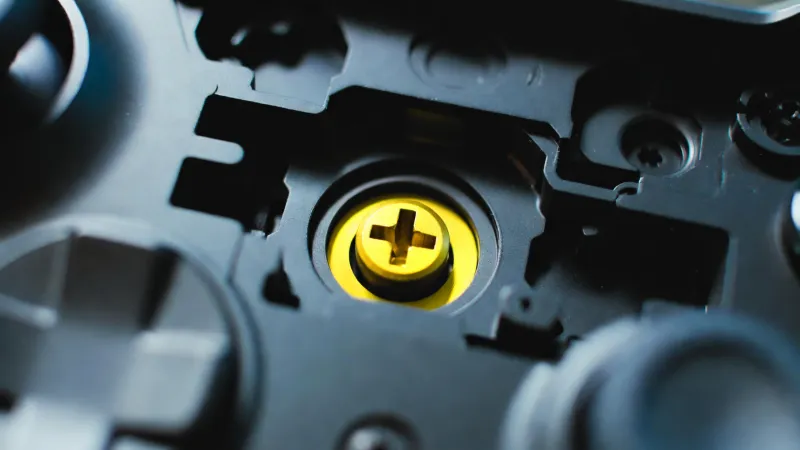
Figure 1: The yellow tension screw is located inside the stick module once the magnetic topper is removed.
- Step 1: Pull the magnetic thumbstick straight up. It will pop right off.
- Step 2: Look inside the stick module. You will see a yellow screw with a cross shape (see Figure 1 above).
- Step 3: Place the adjustment tool into the slot.
- Step 4: Turn the tool Clockwise to increase tension (tighten). Turn Counter-Clockwise to loosen.
The 3 Tension Levels
As you turn the key, you will feel a distinct "click." Do not force the screw past the stopping point.
| Level | Feel | Best For |
|---|---|---|
| Low (Default) | Very loose, moves easily. | Racing games, RPGs. |
| Medium | Standard resistance. | General gaming. |
| High | Stiff and tight. | Shooters (COD), Sniping. |
How to Adjust Elite Series 2 Tension Without the Tool
Real talk—most of us lose that tiny silver key within the first month. You do not need to buy a replacement tool online to fix this. You can use a standard household item.
The Solution: Use a small flathead screwdriver.
You need a screwdriver head that is roughly 3mm wide (or 1/8 inch). Eyeglass repair kits usually have this exact size.
Warning: Be very gentle. The screw inside is made of plastic, not metal. If you use a knife tip or a paperclip, you will damage the plastic groove. Stick to a proper flathead screwdriver that fits snugly.
Troubleshooting: Why Is My Tension Screw Spinning?
This is the most common panic moment for Elite owners. You put the tool in, turn it, and... nothing happens. It just spins and spins without clicking. Is it broken? Probably not.
The internal gear sometimes gets dislodged or doesn't "catch" the threads properly.
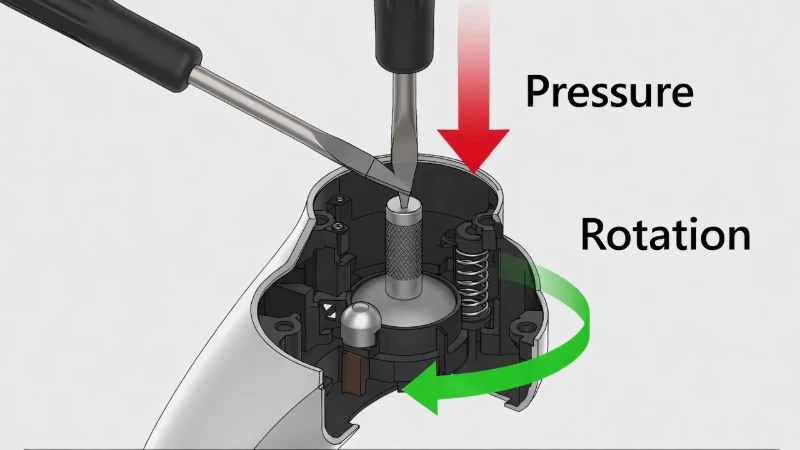
Figure 2: If the screw spins freely, apply firm downward pressure to re-engage the internal gear.
The "Push Down" Fix
- 1. Insert your tool: Place your screwdriver or key into the slot.
- 2. Apply Downward Pressure: Push the screw down firmly into the controller while you turn it.
- 3. Turn Slowly: As you push and turn, you should feel the gear "bite" or catch. It will then click into the next position.
If you push down hard and it still spins freely in both directions, the mechanism might be snapped. But 90% of the time, pushing down fixes it immediately.
"Loose" Sticks vs. Stick Drift: Know the Difference
Before you finish, make sure you are fixing the right problem. Adjusting the tension screw will not fix stick drift.
- Tension Issue: The stick physically feels light and floppy to touch, but it sits in the middle correctly.
Fix: Tighten the screw. - Stick Drift: Your character moves or looks around on screen even when you are not touching the controller.
Fix: This is a sensor failure. Tension won't help. You need to clean the sensor or replace the unit.
Using Software to Help Loose Sticks
If you have set the screw to "High" tension and it still feels too loose for you, use the software to fake a heavier feel.
- Open the Xbox Accessories App on your console or PC.
- Select your Elite Series 2 profile.
- Go to the Left or Right Stick settings.
- Change the Sensitivity Curve to "Delayed" or "Smooth".
These curves require you to push the stick further before the game registers fast movement. It tricks your brain into thinking the stick is heavier than it actually is.