
You are in the middle of a game. You hit the back paddle to jump or slide, but nothing happens. You lose the match.
It is incredibly frustrating. You bought the Xbox Elite Series 2 controller specifically for these extra buttons. When your Elite Series 2 paddles stop working, the controller feels useless.
The good news is that your controller might not be broken. Often, the issue is just a software glitch or a small gap in the plastic. You can fix most cases of unresponsive Elite Series 2 paddles at home without spending a dime.
Why Your Elite Series 2 Paddles Stop Working
Before we fix it, we need to know what went wrong. There are usually three reasons why you are repairing unresponsive P1-P4 paddles.
- Software Glitch: A recent firmware update from Microsoft often breaks paddle inputs on PC.
- Dirt and Grime: Dust or sticky residue can get under the paddle and block the sensor.
- Wear and Tear: The small plastic nub on the paddle wears down. It clicks, but it does not press the button deep enough to register.
Test Your Elite Series 2 Paddles Before Fixing
Do not open your controller yet. You need to verify if the problem is hardware or software using a trusted tool.
Diagnostic Check:
- Open the Xbox Accessories App on your Xbox or PC.
- Go to "Test Mode" (look for the beaker icon).
- Press the paddle.
If it lights up on screen: Your switch works. The issue is likely your game settings or Steam input configuration.
If it does not light up: You have a hardware issue or a firmware bug.
Verify with our Tester ToolSoftware Fixes for Unresponsive Elite Series 2 Paddles
Always try these steps first. They are safe and fix about 40% of Elite Series 2 paddle issues.
Check Profiles to Restore Elite Series 2 Paddles
This sounds simple, but it happens to everyone. The Elite Series 2 has a "Profile Switch" button on the front, right in the middle. It has three lights.
- No lights: Default profile. Paddles are often turned off here.
- 1, 2, or 3 lights: Custom profiles.
If you accidentally hit this button, you might have switched to a profile where the Elite Series 2 paddles are not mapped. Press the profile button until you see the lights for your main gaming profile.
Revert Firmware to Fix Elite Series 2 Paddles
If you play on PC, this is the most common fix. A specific Bluetooth update from Microsoft is known to kill paddle input. You need to roll back (revert) the firmware.
- Plug your controller into your PC with a USB cable.
- Open the Xbox Accessories App.
- Press the Windows Key + R on your keyboard.
- Paste this command:
xboxaccessories:\\firmwareupdate?legacyDowngrade=true - Hit Enter.
This forces the app to install the older, stable software. Once it finishes, test your Elite Series 2 paddles again.
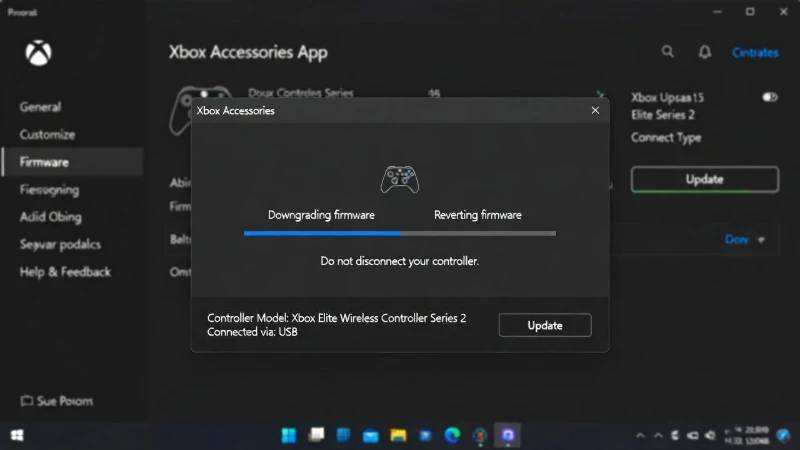
Running the reversion command forces the Xbox app to install older, more stable firmware.
Hardware Fixes for Elite Series 2 Paddles (No Opening)
If software did not work, the issue is physical. However, you still do not need to take the controller apart yet.
Cleaning Sticky Elite Series 2 Paddles
Sometimes, the tiny green button under the paddle gets stuck.
- Pull the metal paddle off (it is magnetic, so just pull).
- Look for the small green button inside the hole.
- Dip a Q-tip in Isopropyl Alcohol (99% is best).
- Dab the alcohol onto the green button.
- Press the button repeatedly with the Q-tip to work the alcohol inside.
The Tape Trick for Loose Elite Series 2 Paddles
This is the "secret weapon" for fixing Elite Series 2 P1-P4 paddles. Sometimes the button works, but the plastic paddle does not push it far enough.
- Remove the metal paddle.
- Cut a tiny square of electrical tape or Scotch tape.
- Stick the tape on the back of the metal paddle, exactly where it touches the green button.
- Put the paddle back on.
The tape adds thickness. Now, when you press, it pushes the button deeper. This fixes 90% of cases where the paddle clicks but does not register.
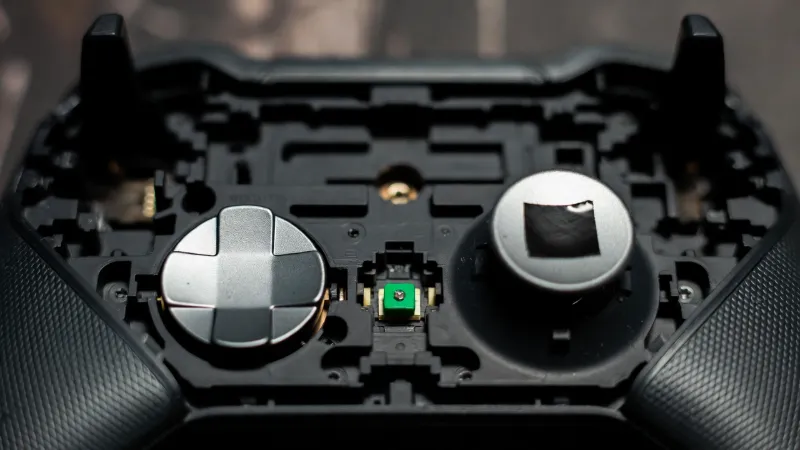
Applying a small piece of tape to the back of the paddle helps it press the worn-down green switch deeper.
Replacing Parts for Broken Elite Series 2 Paddles
If the tape and cleaning failed, the actual switch on the motherboard might be dead. This requires repairing unresponsive P1-P4 paddles by opening the controller.
Warning: This voids your warranty.
You will need a T8 Security Torx screwdriver, a pry tool, and a replacement "daughterboard". You must remove the faceplate, unscrew the back housing, and swap out the button board. This is advanced. If you are not comfortable with tools, the tape trick is usually a better solution.
Frequently Asked Questions
Why are my Elite Series 2 paddles clicking but not working?
If the paddle clicks but does not work, the internal sensor is likely dirty or worn down. Try the "tape trick" by placing a small piece of tape on the back of the paddle to help it press the sensor deeper.
How do I reset my Elite Series 2 paddles?
Open the Xbox Accessories App. Select your controller profile and choose "Restore to Default." This resets all mappings for your Elite Series 2 paddles.
Can I fix Elite Series 2 paddles without opening the controller?
Yes. You can fix most issues by cleaning the switches with rubbing alcohol or reverting the controller firmware on your PC. Opening the controller is a last resort.
Does the warranty cover unresponsive Elite Series 2 paddles?
Yes, Microsoft provides a 1-year warranty for the Elite Series 2. If your paddles stop working within a year, request a free replacement from Microsoft Support.