
Is your controller blinking but refusing to pair? If your sync button is broken, stuck, or just being stubborn, don’t panic. You don't need to buy a new controller yet.
Most Xbox connection issues are easy to fix. The sync button is just one way to pair your devices. We can bypass it entirely. Let’s get your controller connected so you can get back to your game.
The Fastest Way to Fix Xbox Connection Issues (The USB Cable Trick)
If you want to solve your connection problem right now, stop fighting with the wireless button. The absolute best fix is to turn your wireless controller into a wired one for just a few seconds.
Crucial Warning: Check Your Cable First
Before you start, you must check your equipment. This is where most people fail.
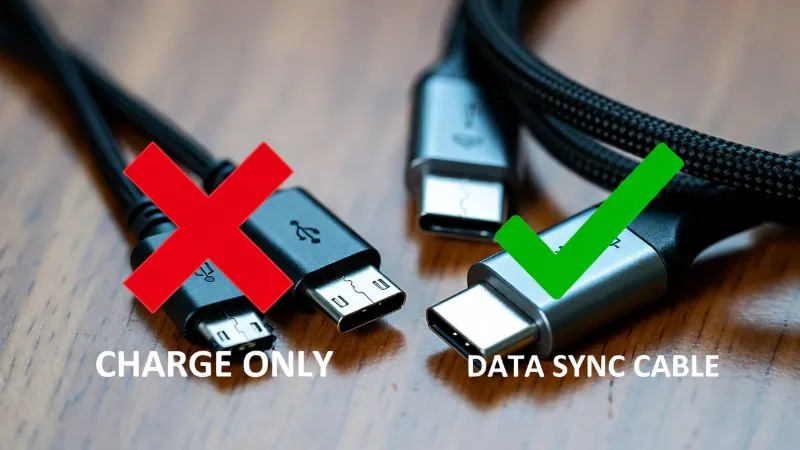
Many cheap cables are "Charge Only." They have wires for power but no wires for data. If you plug it in and the controller charges but still won't connect, you are likely using a charging cable. Swap it for a data sync cable.
Steps to Connect:
- Find a USB-C cable (for Series X/S) or a Micro-USB cable (for Xbox One).
- Plug one end into the controller and the other into the USB port on the front or back of your Xbox.
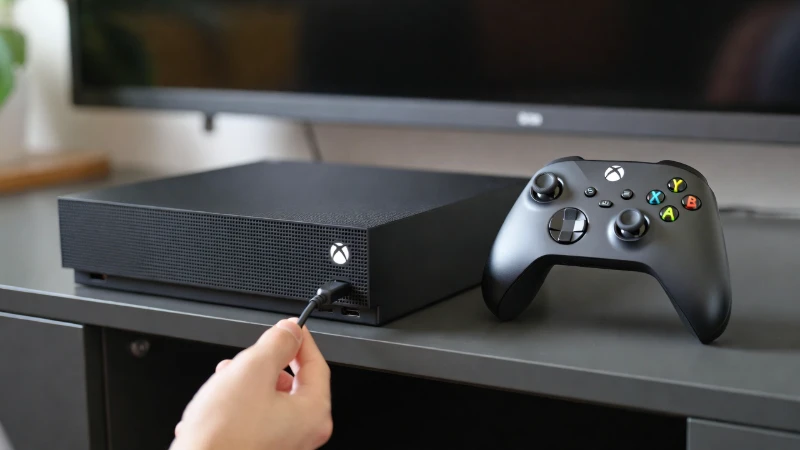
- Turn on the controller. You should feel a vibration buzz.
- Wait until the Xbox light on the controller stays solid white.
- The Test: Unplug the cable.
If the light stays solid, you are done. The controller is now paired wirelessly. The cable told the console, "Hey, this controller belongs to you," and the console saved that information.
Fix Xbox Connection Issues by Hard Resetting Your Console
Sometimes the problem isn't your controller. It’s the console. Sometimes the wireless radio inside gets frozen. No matter how many times you press the sync button, it won't work because the console isn't listening.
Steps to clear the glitch:
- With the Xbox on, press and hold the power button on the console (not the controller).
- Keep holding it for a full 10 seconds until the system completely shuts down.
- Crucial Step: Unplug the power cord from the wall. Wait 30 seconds. This drains all the electricity and clears the temporary memory.
- Plug it back in and turn it on.
- Try to pair your controller again.
Solving Xbox Connection Issues Caused by Signal Interference
Wireless interference is a silent killer for controllers. Xbox controllers use a 2.4GHz signal. If the airwaves are too crowded, your controller can't "shout" loud enough for the console to hear it.
External Hard Drives
Some USB 3.0 drives leak radio noise. Unplug them and re-test.
The Router
Is your router on top of your Xbox? Move it at least 3 feet away.
Metal Objects
Metal cabinets block signals. Move your console to an open shelf.
Using the "Add Device" Menu to Fix Xbox Connection Issues
If the button on your console is broken but you have a second working controller (or a media remote), you can force the pairing process through the software settings.
- Use your working controller to go to Settings.
- Select Devices & Connections > Accessories.
- Click Add a Device.
- Your Xbox is now in "Search Mode."
- Press and hold the sync button on your broken controller.
Comparison: What Do the Lights Mean?
| Light Pattern | What It Means | The Fix |
|---|---|---|
| Slow, Steady Blink | Searching for console | Press sync button or use USB cable method |
| Fast, Rapid Flash | In "Pairing Mode" | Check if console is also in pairing mode |
| Blinks Twice, Then Off | Battery Critical / Disconnected | Swap batteries or charge the pack |
| Solid White Light | Connected Successfully | You are good to go. Start gaming. |
Frequently Asked Questions About Xbox Connection Issues
How do I sync my Xbox controller if the sync button is broken?
You can bypass the broken button by using a USB data cable. Plug the controller directly into the Xbox USB port. Once the controller vibrates and the light turns solid, you can unplug the cable, and it will remain connected wirelessly.
Why is my Xbox controller flashing but not connecting?
This usually means the controller is paired to a different device (like a phone or PC) or it cannot find the console signal due to interference. Double-tap the pair button to switch back to the console mode, or plug it in with a USB cable to reset the connection.
Can a bad battery cause Xbox connection issues?
Yes. As batteries get weak, the wireless radio is the first thing to shut off to save power. The controller might turn on, but it won't have enough power to maintain a stable connection. Always try fresh AA batteries first.