
You hit the jump button, but your character waits a split second before moving. It costs you the match. It ruins the fun. Is it your internet? Probably not. It might be your controller.
If you use Generic PC Gamepads, knowing how to test polling rates is the only way to be sure. Whether you rock a sturdy Logitech F310 or a modern 8BitDo, hidden input lag can drag you down. Let’s break down how to check your speed, compare popular models, and fix that sluggish feeling.
1. How to Test Gamepad Polling Rates on PC
You don't need expensive software to test gamepad polling rates. You just need a browser and your controller. The "polling rate" is simply how many times per second your controller "talks" to your PC. Higher numbers usually mean less delay.
The Simple Test Process:
- Connect Your Controller: Plug in your generic PC gamepad, Logitech, or 8BitDo via USB. Wired connections are best for testing.
- Open a Web Tester: Go to a trusted tool like TestMyGamePad or HardwareTester.
- Move the Sticks: Don't just press buttons. Rotate both analog sticks in fast, wide circles.
- Watch the "Hz" Number: Look for the "Polling Rate" or "Hz" readout. It will likely jump around.
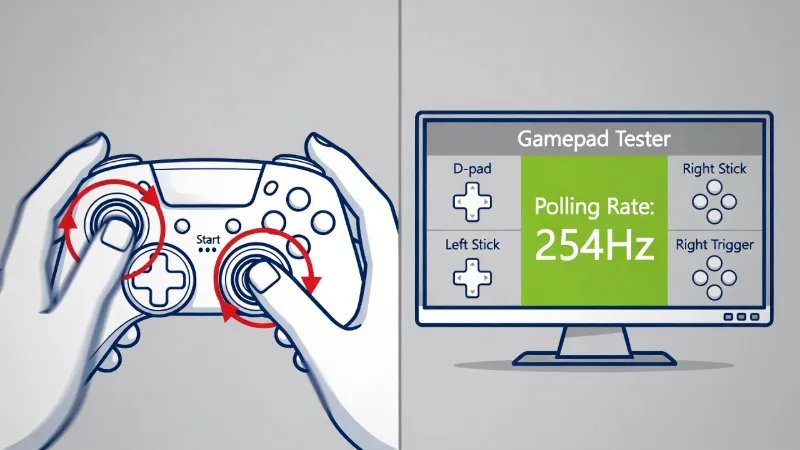
Accuracy Tip: Don't just press buttons. Rotate both analog sticks in wide, fast circles to force the controller to send maximum data updates to your PC.
What the numbers mean:
Average Rate: This is your baseline speed.
Jitter/Stability: If the number jumps wildly (e.g., from 500Hz down to 20Hz), your connection is unstable.
2. Interpreting Polling Rates: What is a Good Score?
When you test generic PC gamepads polling rates, you will usually see one of three numbers. Here is what they mean for your gaming experience.
- 125Hz (Standard): This equates to roughly 8 milliseconds (ms) of delay. This is standard for Xbox controllers and older Logitech gamepads. It is perfectly fine for Top RPGs for PC, but might feel slow for competitive shooters.
- 250Hz - 500Hz (Good): This drops delay to 2ms - 4ms. Many mid-range controllers sit here. It feels snappy and responsive.
- 1000Hz (Pro): This is 1ms of delay. This is what pro gamers look for. Some 8BitDo models can hit this, but most generic PC gamepads cannot without tweaking.
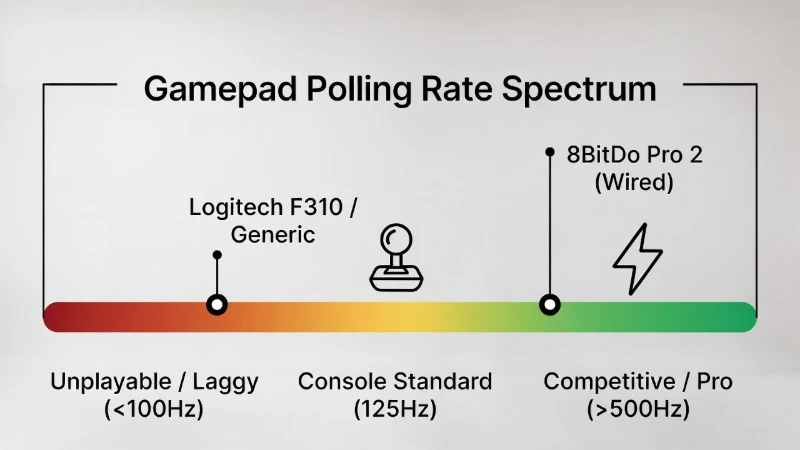
The Lag Spectrum: Most generic and Logitech controllers sit in the "Standard" yellow zone, while wired 8BitDo controllers can reach the "Competitive" green zone.
3. Logitech vs. 8BitDo Polling Rates: Head-to-Head
We analyzed data from users who test generic PC gamepads against these two giants. Here is the reality of Logitech vs. 8BitDo polling rates.
Logitech (F310 / F710)
These controllers are tanks. They last forever. However, they use older technology.
Average Rate: Capped at roughly 125Hz.
Stability: Very stable. It rarely drops, but it won't go fast.
Verdict: Great for durability, not for speed.
8BitDo (Pro 2 / Ultimate)
These are modern favorites. They use newer firmware.
Average Rate: Often hits 250Hz or even 500Hz+ in wired mode.
Bluetooth Warning: When wireless, the rate often drops to match standard console speeds (around 125Hz) to save battery.
Verdict: Faster than Logitech, but you must use a cable for the best results.
| Controller Model | Wired Polling Rate | Bluetooth Polling Rate | Best For... |
|---|---|---|---|
| Logitech F310 | ~125Hz | N/A (Wired Only) | Casual / Retro Games |
| Logitech F710 | ~125Hz (Dongle) | N/A | Couch Gaming |
| 8BitDo Pro 2 | ~500Hz | ~125Hz | All-Rounder |
| Generic USB | Random (Usually 100Hz) | Variable | Budget Play |
4. Fixing Low Polling Rates on Generic PC Gamepads
If you test your generic PC gamepad and get a low score (under 100Hz), don't throw it away yet. The issue might be your setup, not the controller.
1. Switch USB Ports
This is the most common fix. Move your controller from a USB 2.0 port (usually black) to a USB 3.0 port (usually blue). USB 3.0 handles data faster and can stabilize the polling rate.
2. Update Firmware
This applies specifically to 8BitDo polling rates. Go to the Official 8BitDo Support Page to check for updates. They often release patches that fix lag issues. Generic PC gamepads rarely have updates, but it is worth checking the manual.
3. Avoid Interference
If you are testing wireless lag, move your phone away from the controller. Bluetooth signals get crowded easily, causing the rate to drop.
5. Can You Overclock Generic PC Gamepads?
Advanced users often ask if they can force a higher polling rate. The answer is yes, but be careful. Tools like "hidusbf" allow you to "overclock" a USB port.
The Upside: You can sometimes turn a 125Hz generic controller into a 500Hz beast.
The Downside: It can make the controller unstable or cause it to disconnect randomly.
If you try this, always test the generic PC gamepad again immediately to ensure it is actually stable. A glitchy 1000Hz is worse than a stable 125Hz.
Frequently Asked Questions
Q: What is a good polling rate for a PC controller?
A: For casual gaming, 125Hz is a good standard. If you play competitive shooters, you should aim for 250Hz or higher to minimize input lag.
Q: Why is my 8BitDo controller lagging on Bluetooth?
A: Bluetooth connections often lower the polling rate to roughly 125Hz to save battery life and ensure stability. For the fastest response, connect your 8BitDo with a USB cable.
Q: Do generic USB controllers have worse input lag?
A: Often, yes. Cheap generic controllers use older chips that cap out at roughly 100Hz. However, some can be fast if connected to a USB 3.0 port.
Q: Can I increase the polling rate of my Logitech F310?
A: The Logitech F310 is hardware-locked to roughly 125Hz. You generally cannot increase this rate without advanced and risky USB overclocking tools.