
You are in a 1v1 gunfight. You see the enemy, you press the trigger, but you still lose. Why? It might not be your skill. It might be your input lag.
By default, a PS5 controller on PC has a delay of about 4ms to 5ms. That sounds small, but in competitive gaming, every millisecond counts. Overclocking your controller can drop that delay to 1ms or even less.
This guide shows you exactly how to overclock PS5 controller on PC using a free tool called hidusbf. We will also fix the common errors that stop it from working on Windows 11.
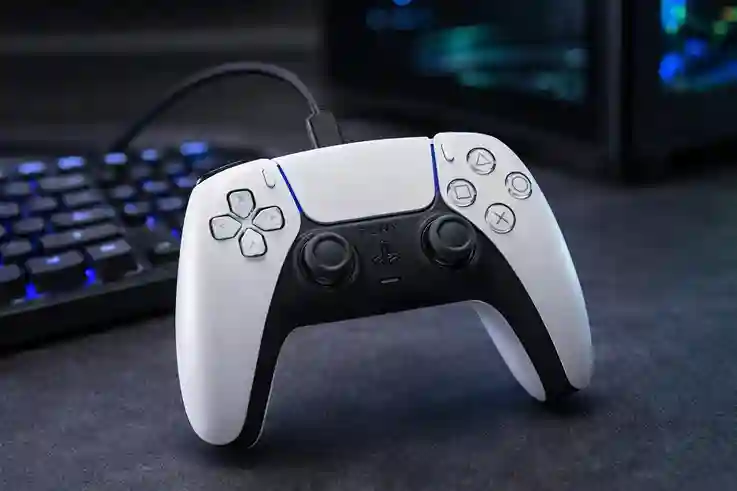 A wired connection is required to achieve the 1ms response time.
What You Need to Overclock PS5 Controller
Before we start, make sure you have the right gear. Overclocking only works if you have a stable wired connection.
- The Controller: A Sony DualSense (PS5) Controller.
- The Cable: A high-quality USB-C data cable.
Note: You cannot overclock effectively over Bluetooth. You must be wired. - The Software: You need the hidusbf driver (zip file).
Download from LordOfMice GitHub - DS4Windows (Optional): If you use DS4Windows to remap buttons, you can still follow this guide.
Step-by-Step: How to Overclock PS5 Controller on PC
Follow these steps exactly. One wrong click means the overclock won't apply.
Step 1: Download and Extract the Tool
First, you need the tool that changes the polling rate (how often your controller talks to your PC).
- Search for "hidusbf" and download the zip file from the trusted source linked above.
- Important: Do not run the file from inside the zip folder. Extract (unzip) the folder to your desktop first.
Step 2: Install the Driver
- Open the folder you extracted.
- Go to the folder named DRIVER.
- Right-click
Setup.exeand select Run as Administrator.
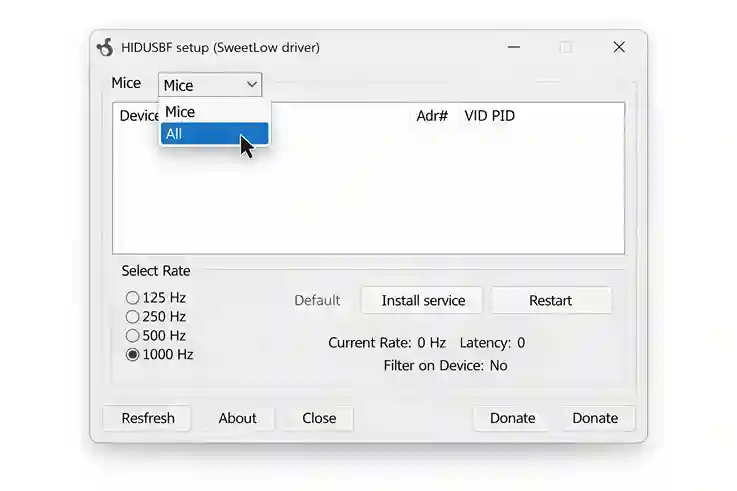 Make sure to switch the view from "Mice" to "All" to find your controller.
Step 3: Configure the Overclock Settings
This is where most people get stuck. If your window looks empty, look at the top left corner.
- Change the dropdown menu from Mice to All.
- Scroll down until you see "Wireless Controller". This is your PS5 controller.
- Click on the row for your controller to highlight it.
- Check the box that says Filter On Device.
- In the Default dropdown, change the setting to 1000.
- Click the Install Service button.
Step 4: Verify the Overclock PS5 Controller Success
Did it work? Let's check.
- Unplug your USB-C cable.
- Wait 5 seconds.
- Plug it back in.
- Look at the
hidusbfwindow again. You should see a Green Bar next to your controller name. - Check the column named
bInterval. It should say 1. - Check the column named
Rate. It should be hovering around 1000.
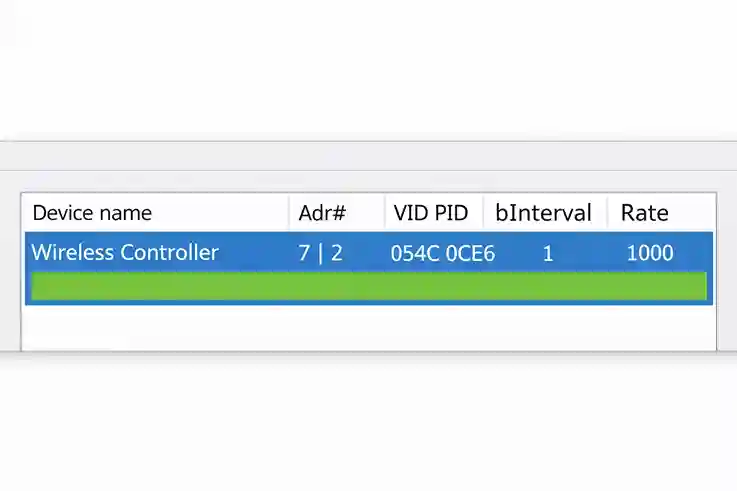 If you see the Green Bar and Rate 1000, your input lag is now 1ms.
Troubleshooting: Why Your Overclock PS5 Controller Failed
If you see a "Red X" or an error message saying "Driver Signature Enforcement," don't panic. This is very common on Windows 10 and 11.
The Windows 11 Fix (Memory Integrity)
Modern Windows security features often block this driver. To fix it:
- Press Windows Key and type "Core Isolation".
- Open the system settings page.
- Turn Memory Integrity to OFF.
- Restart your PC.
Once installed, you can usually turn this back on.
Should You Choose 1000Hz or 8000Hz?
You will see an option for 8000Hz. Faster is better, right? Not always.
| Setting | Response Time | Stability | Recommended For |
|---|---|---|---|
| Default | ~4ms | Very Stable | Casual gaming |
| 1000Hz | 1ms | Stable | Most Gamers |
| 8000Hz | 0.125ms | Unstable | High-end PCs Only |
Why not 8000Hz? If you choose 8000Hz, your CPU has to check the controller 8,000 times per second. This can cause your game to stutter or drop frames (FPS) if your PC isn't powerful enough.
FAQ: Common Questions
Does overclocking drain the battery?
No. Since you must use a wired USB connection to overclock, your controller is charging the entire time.
Is it safe to overclock PS5 controller on PC?
Yes. You are not increasing voltage or heat. You are simply asking the USB port to check for data more often.
Can I get banned for using this?
No. Overclocking a controller is not cheating. It does not aim for you or run macros. It is legal in all major competitive games.