
Is your DualShock 4 controller drifting, disconnecting, or just flashing a white light? Don't panic. You probably don't need a new controller. You just need to clear its memory.
Most connection issues happen because the controller is confused. It does not know which console it belongs to. We will look at two ways to fix this: a Hard Reset (using the hidden button) and a Soft Reset (using the PS4 menu). Let's get your game back on track.
Before you start:
Make sure the issue isn't stick drift. Test your buttons first.
Launch Tester ToolHow to Perform a Hard PS4 Controller Reset (The 5-Second Fix)
This is the most common fix. A "Hard Reset" returns your controller to factory settings. It does not delete your games or save files. It simply makes the controller forget old connections so it can start fresh.
What you need:
- Your DualShock 4 controller
- A paperclip, SIM card tool, or a toothpick (Do not use a needle; it can damage the button)
- A micro-USB data cable (more on this later)
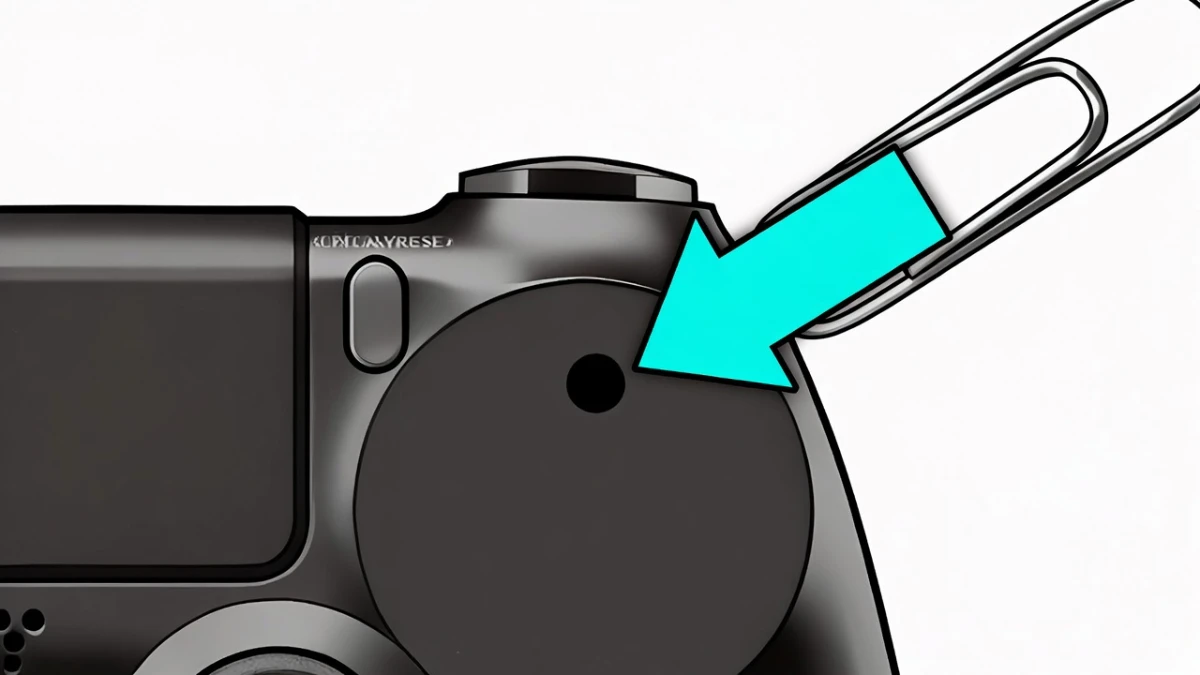
Steps for a Hard Reset:
- Turn off your PS4 console. Unplug it from the wall to be safe.
- Flip the controller over. Look at the back near the L2 shoulder button (the top left trigger).
- Find the small hole. You will see a tiny circular hole next to the screw.
- Press the button. Gently insert your paperclip into the hole. You will feel a small click.
- Hold for 5 seconds. Keep the button pressed down for a full count of five.
- Reconnect. Plug the controller into the PS4 with your USB cable.
- Power On. Press the PS button on the front of the controller. The light bar should turn blue.
If this works, you are done. If not, keep reading. The issue might be your cable.
PS4 Controller Reset vs. Soft Reset: What Is the Difference?
Many guides confuse these two. They are different tools for different problems.
- Hard Reset: This is a hardware fix. You press a physical button to wipe the controller's internal memory. Use this when the controller won't connect at all.
- Soft Reset: This is a software fix. You use the PS4 dashboard to tell the console to "forget" the device. Use this if the controller connects but acts weird.
| Feature | Hard Reset | Soft Reset |
|---|---|---|
| Method | Physical button on back | Settings menu on TV |
| Best For | Won't pair / Flashing light | Lag, drift, or audio issues |
| Tools Needed | Paperclip | A second working controller |
| Difficulty | Very Easy | Medium |
How to Do a Soft PS4 Controller Reset (Bluetooth Re-Pairing)
If your controller works but keeps disconnecting, try a Soft Reset. Note: You need a second controller or a media remote for this step.
- Log in to your PS4 with your working controller.
- Go to Settings.
- Select Devices.
- Choose Bluetooth Devices.
- Find the DualShock 4 that is acting up in the list.
- Press the Options button on your working controller.
- Select Forget Device.
Now, plug the "broken" controller back in with a USB cable. Press the PS button to pair it again.
The #1 Reason Your PS4 Controller Reset Failed (The Cable Trap)
You did the reset. You pressed the PS button. The light flashed orange once, then went dark. Why?
You are likely using the wrong cable.
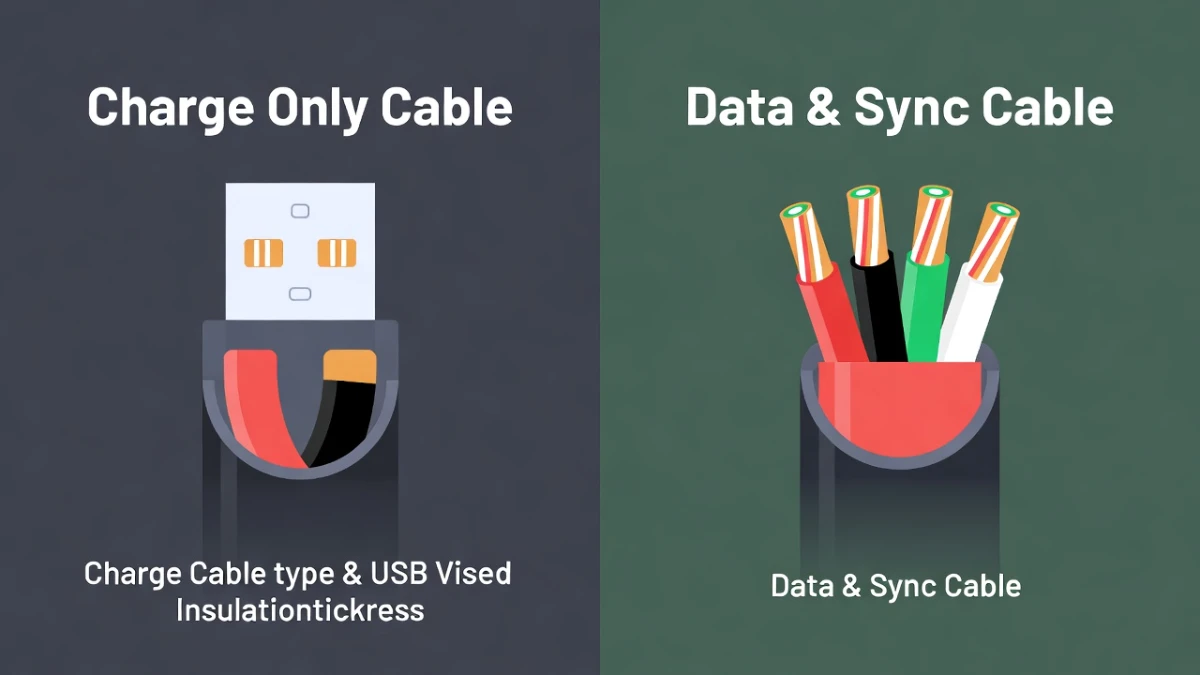
Not all Micro-USB cables are the same.
- Charge Cables: These have 2 wires inside. They only carry power. They can charge your controller, but they cannot send data.
- Data Cables: These have 4 wires inside. They carry both power and data.
To pair a controller after a reset, the PS4 must "talk" to the controller. A charge cable cannot do this. If you are using an old phone charger cord, try a different one.
Troubleshooting After a PS4 Controller Reset
If you tried the hard reset and the data cable, and it still won't work, try these final steps.
1. The "Power Cycle" Method
Sometimes the console is the problem, not the controller.
- Unplug your PS4 from the wall outlet.
- Press and hold the power button on the console (not the controller) for 30 seconds. This drains all leftover electricity from the capacitors.
- Plug it back in and try pairing again.
2. Safe Mode Pairing
- Turn the PS4 completely off.
- Hold the power button on the console until you hear two beeps (about 7 seconds).
- Connect your controller via USB.
- Press the PS button. If it works here, restart the PS4 normally.
Frequently Asked Questions
Q: Does a hard reset delete my games?
A: No. A PS4 controller reset only wipes the memory inside the controller itself. Your games, saves, and account data are safely stored on the console hard drive.
Q: Can I reset a PS4 controller without a paperclip?
A: Yes. You can use a SIM card removal tool, a staple, or a toothpick. Avoid using needles or safety pins. The sharp point can damage the button inside the hole.
Q: Why is my PS4 controller flashing white?
A: A flashing white light means the controller is looking for a console but cannot find one. This usually happens if you used the controller on a PC or a friend's PS4. A hard reset usually fixes this.
Q: How do I pair a PS4 controller without a USB cable?
A: You can pair a controller wirelessly. Hold the Share and PS buttons at the same time until the light bar flashes quickly. Then, use a second controller to find it in the Bluetooth Devices menu. However, using a cable is much faster.