
Your PS4 turns on. The light bar pulses blue, then turns solid white. But the TV screen is black and says "No Signal."
This is the classic "White Light of Death" (WLOD). But here is the good news: A solid white light means your PS4 is actually working. It booted up the operating system successfully. The problem is simply that the picture isn't getting from the console to your TV.
This guide will help you test your PS4 HDMI connection, troubleshoot the port without tools, and figure out if you need a professional repair.
What Does the PS4 White Light of Death Mean?
Before we start fixing, we need to be sure what the light colors mean. The light bar on your console tells you exactly what is happening inside.
| Light Color | Status | What It Means |
|---|---|---|
| Blue (Pulsing) | Booting | The PS4 is turning on and checking hardware. |
| Blue (Flashing) | Failure | The "Blue Light of Death" (BLOD). Major hardware failure. |
| White (Solid) | Active | Good News. The system is on, but video is failing. |
| Red | Overheating | Turn it off immediately. |
If your light is solid white, your hard drive and motherboard are likely fine. The issue is almost certainly the PS4 HDMI port or the cable.
The "Headphone Test" Confirmation
This is the fastest way to confirm your HDMI port is the problem without opening the console.
- Turn on the PS4 and wait for the light to turn solid white.
- Plug a pair of headphones into your DualShock 4 controller.
- Turn up the volume and move the joystick around.
Do you hear menu music?
If yes, your PS4 is perfectly healthy. It's just the video port that is broken.
Basic PS4 HDMI Fix Steps (Try These First)
Before we assume the hardware is broken, let's rule out the simple connection issues.
1. The Power Cycle (Reset the Handshake)
Sometimes the TV and the PS4 stop "talking" to each other properly due to an HDCP handshake failure.
- Turn off the PS4 and the TV.
- Unplug both from the wall outlet.
- Disconnect the HDMI cable.
- Wait 60 seconds to drain the power capacitors.
- Plug everything back in and turn it on.
2. Swap Cables and Displays
HDMI cables degrade over time. Try a different high-speed HDMI cable. Also, try plugging the PS4 into a different TV or monitor. If the image works on another TV, your PS4 is fine, and your original TV port might be the issue.
How to Visually Inspect Your PS4 HDMI Port
If the cable swap didn't work, grab a flashlight. We need to look inside the PS4 HDMI port on the back of the console.
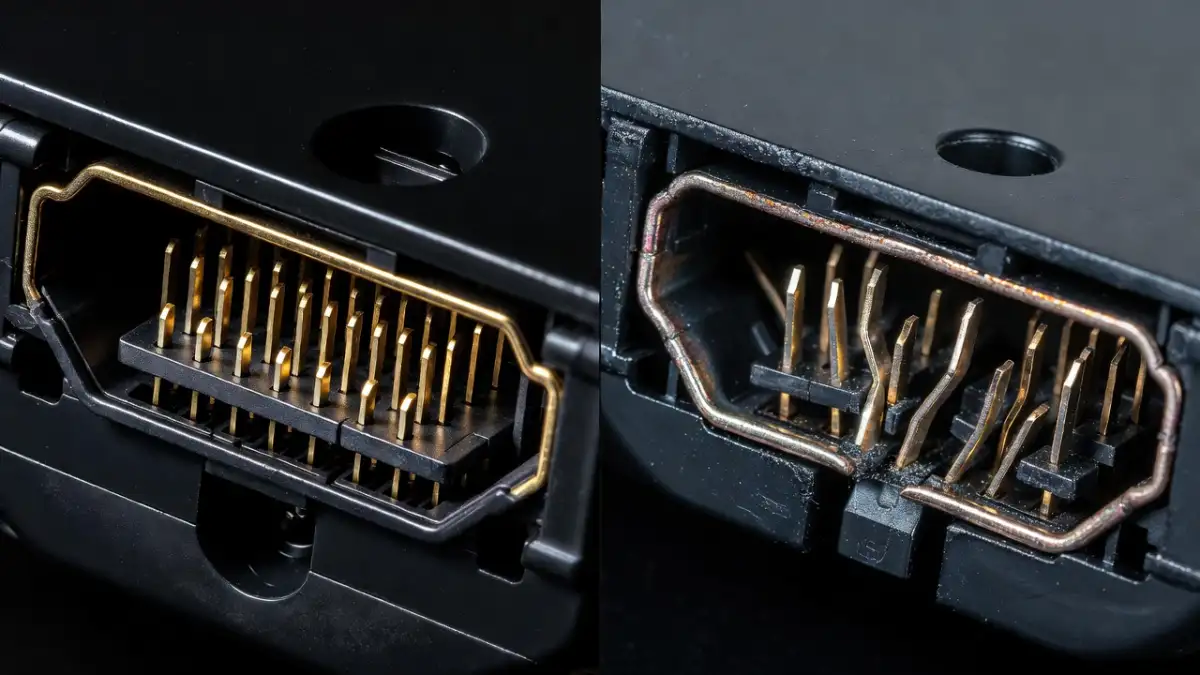
Look for these three red flags:
- Bent Pins: Look at the small copper pins inside. Are any of them bent back, touching each other, or missing?
- Pushed-In Port: Does the metal frame of the port look like it has been pushed deep into the console?
- Wobbly Connection: Plug the cable in gently. Does the port feel loose or wiggle up and down easily?
Warning: If you see bent pins, do not force the cable in. You will cause more damage. This usually means you need a physical repair.
Advanced PS4 HDMI Fix: The "Blind" Safe Mode Trick
Sometimes the resolution settings on your PS4 get messed up (e.g., trying to output 4K to a 1080p TV), and you get a black screen. Usually, you would use Safe Mode to fix this. But if you can't see the screen, you have to do it blindly.
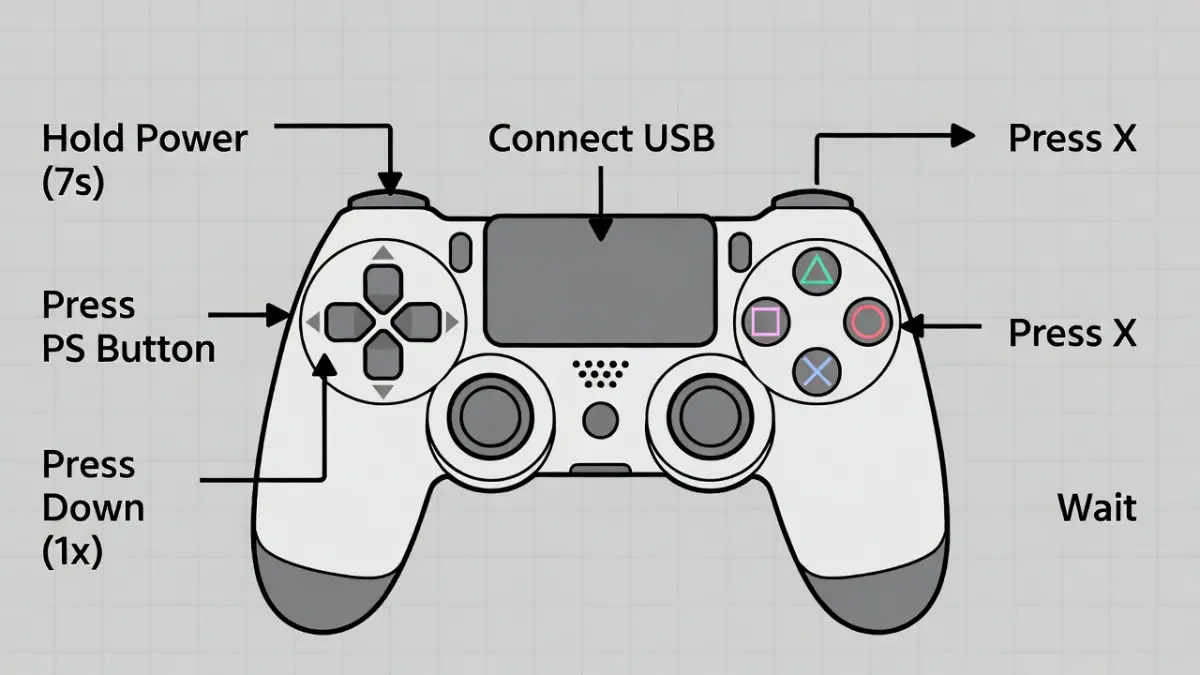
Follow this sequence strictly:
- Turn the PS4 off completely. (Hold the power button until it beeps twice and shuts down).
- Boot into Safe Mode. Hold the power button again. You will hear a beep when you press it, and a second beep about 7 seconds later. Release the button after the second beep.
- Connect your controller with a USB cable and press the PS button.
- The Blind Sequence:
- Wait about 20 seconds to be sure the menu loaded.
- Press Down on the D-pad once. (This moves cursor to "Change Resolution").
- Press X.
- Wait a few seconds.
- Press X again.
The PS4 will restart. If the resolution was the issue, your picture should come back at a low quality (480p). You can then change it back to 1080p in the settings.
Hardware Reality: HDMI Port vs. Encoder Chip
If none of the above worked, and your light is still white, you have a hardware failure. It is usually one of two parts:
1. The HDMI Port
This is the most common issue. The pins get damaged from plugging and unplugging the cable. The old port must be de-soldered (melted off) and a new one soldered on.
2. The HDMI Encoder Chip (WLOD Chip)
This is a small chip on the motherboard (Panasonic MN86471A). It handles the video signal.
- The Symptoms: The port looks perfect physically (no bent pins), but you still get no signal.
- The Cause: Often caused by lightning strikes or hot-swapping cables while the console is on.
- The Fix: Requires micro-soldering to replace the chip.
Repair Options: Should You DIY?
You will see videos online showing how to swap the port. Be careful. Replacing a PS4 HDMI port is not a beginner repair.
| Repair Option | Estimated Cost | Risk Level |
|---|---|---|
| DIY Repair | $40 (Tools) | High. Risk of melting motherboard. |
| Local Repair Shop | $80 - $120 | Low. 1-2 day turnaround. |
| Sony Mail-In | $150+ | Low. Long wait time (weeks). |
Frequently Asked Questions (FAQ)
Can I fix a broken PS4 HDMI port without soldering?
No. If the metal pins are broken or disconnected, there is no software update or "trick" that will reconnect them. The metal must be physically reattached using solder.
Why is my PS4 light white but nothing on the screen?
A solid white light means the console booted up correctly. The "No Signal" message means the video cable or port is not sending the picture to the TV.
Is the White Light of Death the same as the Blue Light of Death?
No. The Blue Light of Death (blinking blue) means the console failed to start. The White Light means it started successfully. The White Light is much easier to fix.