
Your aim feels weird in Chapter 5, right? You aren't the only one. With the changes to weapon recoil and movement speed, the settings that worked for you last season might feel terrible now.
If your crosshair drags behind enemies or flies all over the screen, you don't need a new controller. You just need to fix your calibration.
Here is the thing: most pros don't use default settings. They tune their deadzones and sensitivity curves to react instantly. This guide breaks down exactly how to set up your game for the best aim assist and tracking in Fortnite Chapter 5.
Best Controller Sensitivity & Deadzone Settings (Quick Start)
If you just want the best starting point so you can get back to the game, use these settings. These are the "Gold Standard" values used by many high-level players. They offer a balance between fast building and steady aiming.
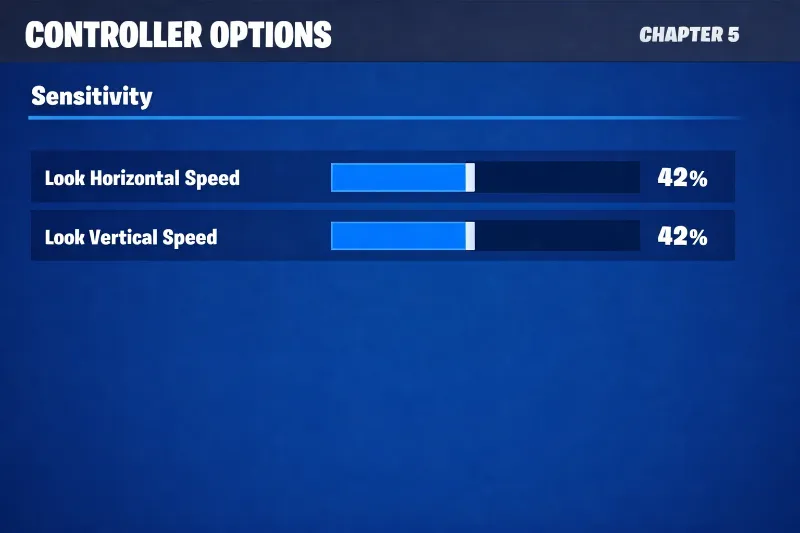
| Setting | Value | Why It Works |
|---|---|---|
| Look Sensitivity (H/V) | 42% - 44% | Fast enough to build, slow enough to track. |
| ADS Sensitivity (H/V) | 10% - 12% | Keeps your shotgun/SMG aim sticky. |
| Build/Edit Multiplier | 2.1x - 2.3x | Lets you build fast without ruining aim. |
| Look Dampening Time | 0.00 Seconds | Removes input delay. Instant reaction. |
| Look Input Curve | Linear | Best for raw muscle memory and close-range fights. |
| Deadzone (Left/Right) | 8% - 12% | Low enough for speed, high enough to stop drift. |
Note:
Use these numbers as a base. We will explain how to tweak them for your specific controller below.
Linear vs Exponential: Which Fortnite Sensitivity is Right for You?
When you look at the Advanced Look Sensitivity tab, you see two main options: Linear and Exponential. This is the most important choice you will make.
Linear Settings (The Meta)
Most pro players use Linear in Chapter 5.
- What it does: If you move your stick 50%, your character turns 50% speed. It is a 1:1 ratio.
- Best for: Close-range SMG tracking, box fighting, and building muscle memory.
- The downside: It can feel "twitchy" at long range.
Exponential Settings (The Classic)
- What it does: The sensitivity starts slow and speeds up the further you push the stick.
- Best for: Long-range AR shots and smooth camera movement.
- The downside: It is harder to make quick micro-adjustments in a box fight.
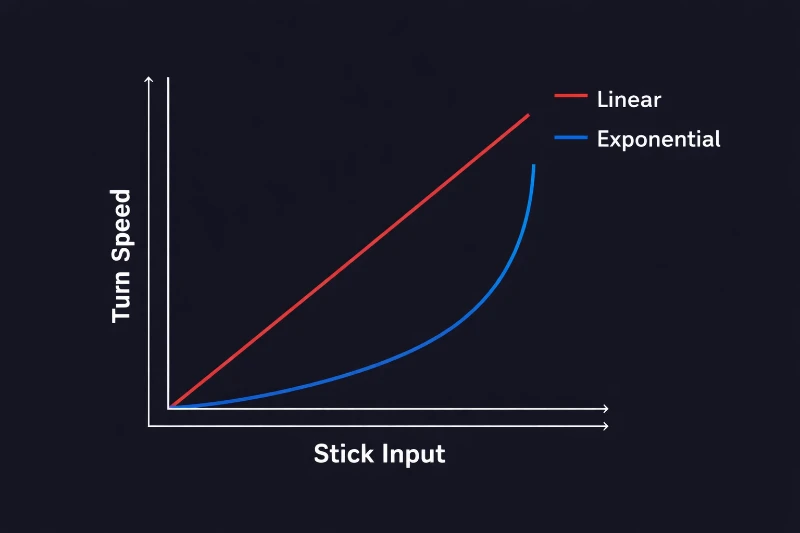
Verdict: If you play aggressively, pick Linear. If you play a support role and stay back, pick Exponential.
If you are struggling with control on Linear, check out our guide on How to Test Your Controller's Analog Sticks for errors.
Fortnite Deadzone Settings: How to Fix Stick Drift
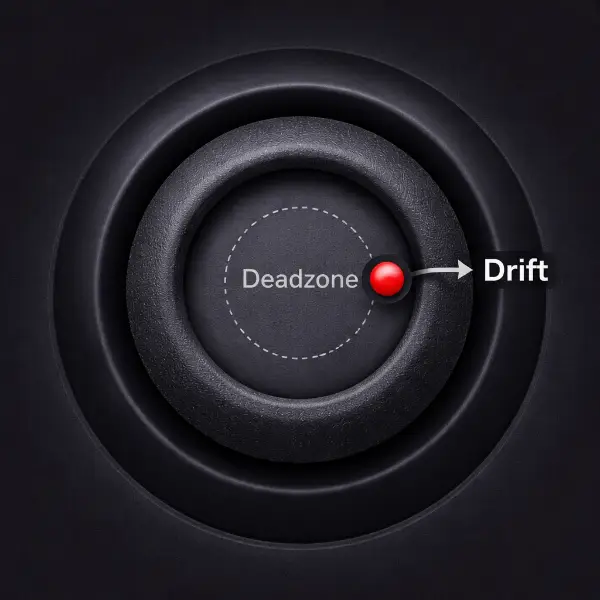
Deadzone is the small area in the center of your joystick where the game ignores movement.
- If your deadzone is too low: Your camera moves by itself (Stick Drift).
- If your deadzone is too high: Your aim feels unresponsive and heavy.
How to Find Your Perfect Deadzone
You should set this as low as possible without your camera moving on its own.
- Go to the controller settings menu.
- Set your "Look Deadzone" to 5%.
- Go into a match or Creative map.
- Take your thumb off the stick. Does the camera drift?
- Yes: Increase by 1% and try again.
- No: Keep it there.
Standard vs. Hall Effect Controllers
Most standard PS5 (DualSense) and Xbox controllers will sit between 10% and 15% after a few months of use. If you have a Hall Effect controller (which uses magnets instead of physical contacts), you can often go as low as 3% to 5% without drift.
Advanced Look Settings: Adjusting for FPS and Input Lag
Many players ignore the "Look Dampening Time" and "Boosts," but these ruin your aim if set wrong.
Turn Off Boosts
You will see settings like "Turning Horizontal Boost." Set all of these to 0%.
Boosts change your speed unexpectedly when you push the stick all the way to the edge. This destroys your muscle memory because your turn speed is never consistent.
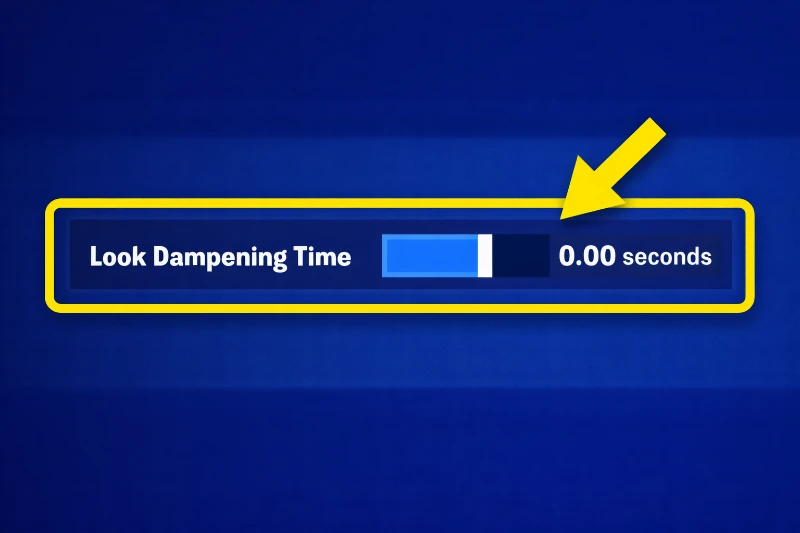
Look Dampening Time (The "Slow Aim" Fix)
This setting adds a tiny delay to smooth out your view.
- The Fix: Set this to 0.00 seconds.
- Why: In Chapter 5, you need instant reactions. Dampening makes your controller feel like it has input lag.
Common Controller Sensitivity Mistakes to Avoid
- Copying a Pro blindly: Just because a pro uses 50% sensitivity doesn't mean you can control it. Start lower (40%) and work up.
- Ignoring Frame Rate: If you play on a Switch or old Xbox (60 FPS), high sensitivity will feel choppy. You actually need a lower sensitivity on older consoles to stay accurate compared to PC players on 120+ FPS.
- Changing settings every day: It takes about two weeks to build muscle memory. Pick a setting and stick with it for at least 14 days before changing it.
FAQ Section
What is the best deadzone for Fortnite Chapter 5?
The best deadzone is the lowest number possible where you don't get stick drift. For most standard controllers, this is between 10% and 12%. For pro controllers, it can be 5% to 8%.
Is Linear or Exponential better for controller aim?
Linear is generally better for Fortnite Chapter 5. It allows for faster edits and better close-range shotgun aim, which is crucial for the current aggressive meta. Exponential is better only if you struggle with long-range accuracy.
Why does my aim feel slow in Fortnite Chapter 5?
Your aim likely feels slow because of "Look Dampening Time." Go to your Advanced Look Controls and ensure Look Dampening Time is set to 0.00 seconds. Also, check that your Deadzone isn't set too high (above 15%).
What sensitivity do pro Fortnite players use?
Most pros use a Look Sensitivity between 40% and 45% and an ADS (Aim Down Sights) sensitivity between 10% and 12%. They almost always turn all Boost settings to 0%.