
Steam Deck Repair & Upgrades: Mastering Your Handheld
The Steam Deck isn't just a console; it's a fully open PC. Valve designed it with repairability in mind, making it one of the most user-friendly devices to fix and upgrade. However, navigating the intersection of Linux-based SteamOS software and custom hardware can be dauntin. Our Valve hub focuses on both the physical and digital aspects of maintaining your Deck.
The Ultimate Upgrade: Hall Effect Joysticks
The most popular modification for the Steam Deck is the installation of GuliKit Hall Effect Joysticks. Unlike standard sticks that use physical wipers, Hall Effect sensors use magnetic fields to detect movement. This means there is zero physical contact, resulting in zero wear and zero drift—forever.
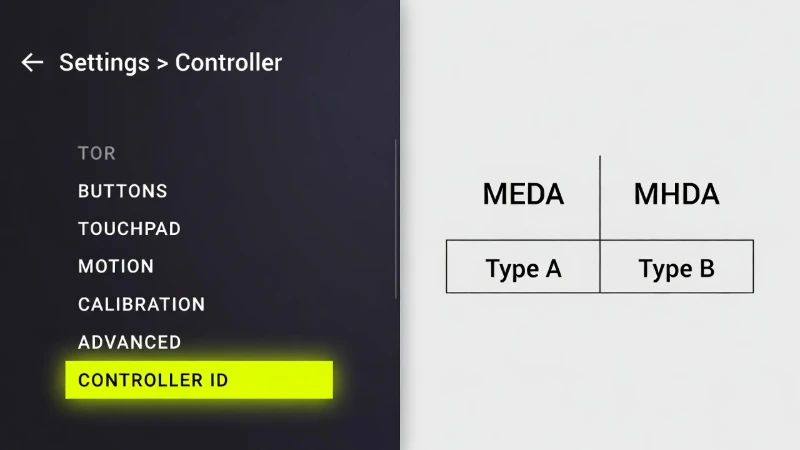
However, the installation is tricky. Valve used two different joystick module suppliers (Type A and Type B) depending on when your Deck was manufactured. Our guide helps you identify your specific Controller ID in the SteamOS settings to ensure you buy the correct replacement part. We also cover the critical desoldering step required to maintain the capacitive touch (touch-detect) feature of the thumbstick cap.
Fixing Drift via SteamOS
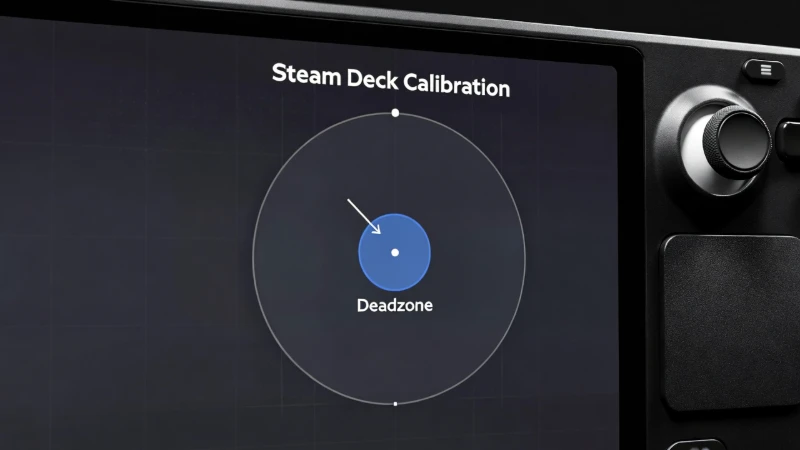
Before opening your device, you should always attempt a software fix. SteamOS has a powerful, built-in calibration tool hidden in the settings menu.
Our Deadzone Calibration Guide walks you through adjusting the deadzones to mask minor drift. By slightly increasing the inner deadzone, you can tell the Steam Deck to ignore the jittery sensor data near the center, restoring a steady aim without needing a screwdriver. This is the first line of defense for any Steam Deck owner.
Trackpad Haptics Tuning
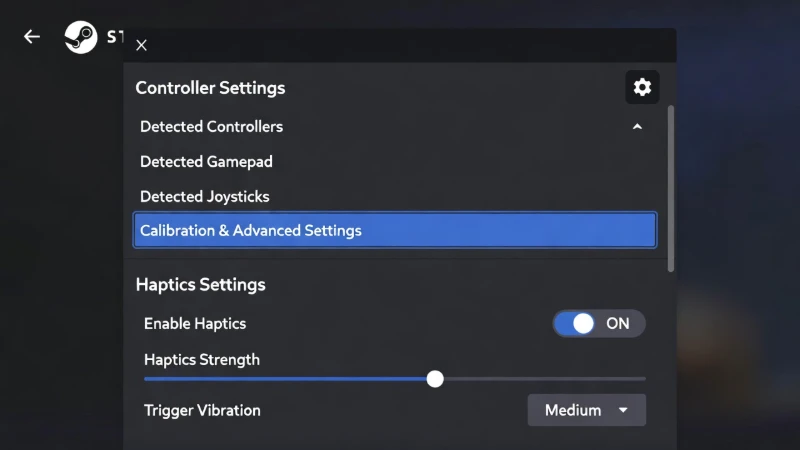
A common complaint among new owners is "uneven" trackpad haptics—where the left pad feels weaker or buzzes differently than the right. This is rarely a hardware defect. It is usually a calibration mismatch in the haptic drivers.
We document a specific "soft reset" procedure involving the Haptics Intensity sliders in the controller menu. By toggling these settings in a specific order and restarting the device, you can force the drivers to recalibrate, equalizing the feel of both trackpads.